


The Lowdown
The Huion Note E is a pretty slick piece of hardware, with a lovely 8.4-inch laminated display, solid Android 15 performance, and EMR pen support that works well once you move beyond Huion’s own software. Unfortunately, that software is the problem. The built-in Notes app is barebones, laggy, and missing essentials like copy-paste, templates, and reliable cloud sync. Add in the lack of Play Protect certification, a too-basic launcher, weak dark mode support, and a flimsy case, and the Note E feels unfinished. The hardware has real potential, but Huion needs a major software glow-up.
Overall
Pros
- Beautiful display
- Solid general Android performance
- EMR pen works well (in third-party apps)
- It’s a good size for handheld notetaking
Cons
- Inbox software is unusably bad
- No Play Protect Certification
- No dark mode
- The included case is fragile
I’m a bit of a digital notepad aficionado. I have loved digital pen products since my first exposure to a Wacom tablet in the heady 1990s. I’m not an artist; I’m just a cheesy doodler. It doesn’t matter, though – I think the ability to directly input handwritten content is just amazing technology. I am also a big fan of e-ink and epaper. It offers certain benefits over a standard display but has its downsides. So, when Huion offered their Note E tablet, I was very curious to see whether the hardware lived up to the hype.
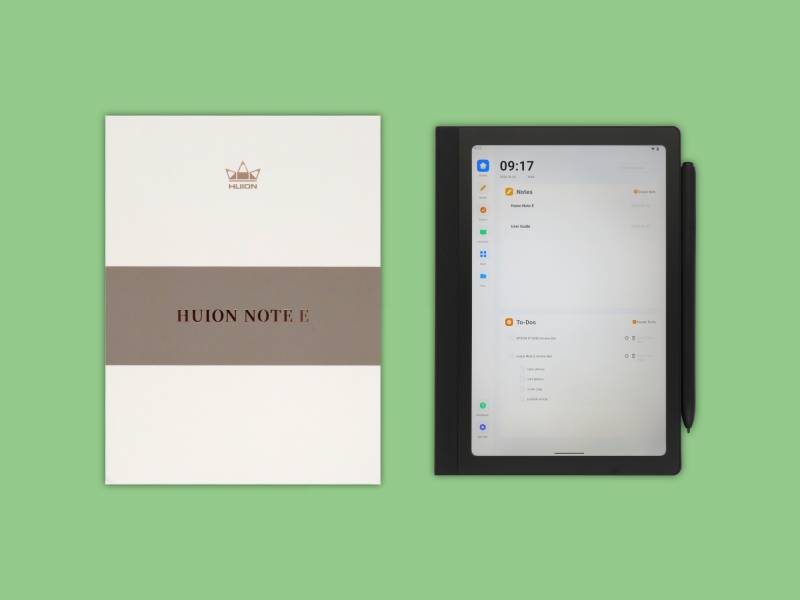
The Note E is an Android 15 tablet which is advertised as a pen-first digital notebook. The idea is to compete with products such as those from BOOX and ReMarkable, both of which offer digital notebook devices that are primarily focused on pen input and advanced digital notebook features. Unlike those tablets, however, the Note E uses a regular backlit LCD, with a few design points to make this tablet appealing to those interested in the digital notebook concept.
The TL;DR? The Note E is a pretty slick piece of hardware, but the software is appallingly bad – so bad, in fact, you might think twice about choosing this tablet…unless Huion releases a major new software package.
In the Box
Huion includes everything you need to get the most out of your device:
- The Note E tablet
- Dark gray folio case
- USB-C charging and data transfer cable
- PenTech 3.0 EMR pen
- Additional pen nibs (and removal tool)
Tech Specs
- 8.4″ 16:10 (A4) IPS LCD, 1920×1200@60Hz (270 PPI)
- DC (as opposed to PWM) backlight dimming
- Etched glass with paper-feel microtexture
- Zero-airgap lamination
- MediaTek Helio G99 8-core (2×2.2GHz; 4×2.0GHz) CPU
- Mali-G57 MC2 GPU
- 6GB LPDDR4 RAM
- 128GB eMMC storage
- PenTech 3.0 EMR pen input
- 802.11ac Wi-Fi 5
- Bluetooth 5.2
- USB-C charging and data transfer
The Display
The display is the crown jewel of the Huion Note E, and it’s a very, very nice display…in the right lighting. My collection of tarot ebooks, which includes card scans, looks great, especially since the display mimics the PPI (points per inch) of printed material. The display is laminated to the digitizer and glass, so there is no visible gap between the surface of the glass and the LCD itself.
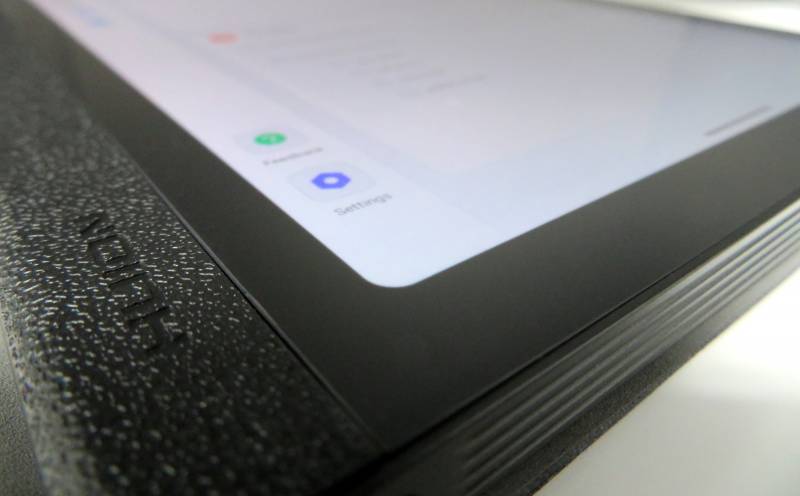
The high-quality display is flush with the bezel and laminated to the glass.
The backlight features DC dimming, which means the LEDs illuminating the display are dimmed by changing the voltage supplied to the array. Standard LED dimming is achieved using pulse width modulation, which rapidly toggles the LED’s power state to mimic dimming. This is taxing on our eyes and can cause headaches, eye strain, nausea, and even irritability from extended exposure.
The DC dimming backlight is quite nice…but it doesn’t get anywhere as low as either my Kobo Libra Colour or any of my BOOX Palma devices (OG, 2, and 2 Pro). This is acceptable in low-light environments, but it’s unacceptable in very dark environments, like an unlit room at night. Unfortunately, I believe this is a function of how DC dimming works – it’s impossible to dim LEDs below a hard limit, beyond which the LED will simply not turn on at all, so it’s likely the minimum brightness is unavoidable without dipping into PWM dimming. This problem would be far less pronounced if the Note E included both a quick Dark Mode toggle and a Dark Mode theme for the inbox launcher.
At full brightness, the display is reasonably visible in clouded sunlight, but this dramatically decreases battery life, so it’s a trade-off. E-ink with frontlight, by comparison, works great in all lighting conditions.
The etched microtexture on the glass is silky and feels a lot like super-smooth, premium paper. This is luxe, but it comes with a hidden downside: I’m a big fan of titanium stylus nibs*, and it turns out microtexture anything eventually smooths out with enough titanium stylus use. Titanium is very hard, and as a result, it wears down etched glass, rather than the glass wearing down the nib. Personally, I prefer smooth glass with a screen protector, because I am notorious for scratching everything I own. That said, if you like naked glass, the finish on the Note E’s display is luxurious.
*Note: Titanium nibs are not without risks to your hardware – both pen and tablet. If you write with any pressure, I don’t recommend them. If you write with no pressure, they work great, but beware the risks.
The Pen
The Note E includes the Huion PW510 EMR pen, which is mostly plastic and features a hard eraser. The eraser must be sufficiently depressed to work as expected, which is very annoying. I will likely switch to one of my other pens at some point.
The included pen uses Huion’s own design and implementation of the EMR technology invented by Wacom, way back in 1987. Huion’s hardware, firmware, and driver are a bit less advanced than Wacom’s, but it’s a good implementation for note-taking and doodling, which is the main use case for this tablet.
Notably, other EMR pens will work with the Note E, but your mileage may vary in terms of accuracy and dynamics (pressure and tilt). I tested the following pens, and all worked without issue (including the eraser):
The Case
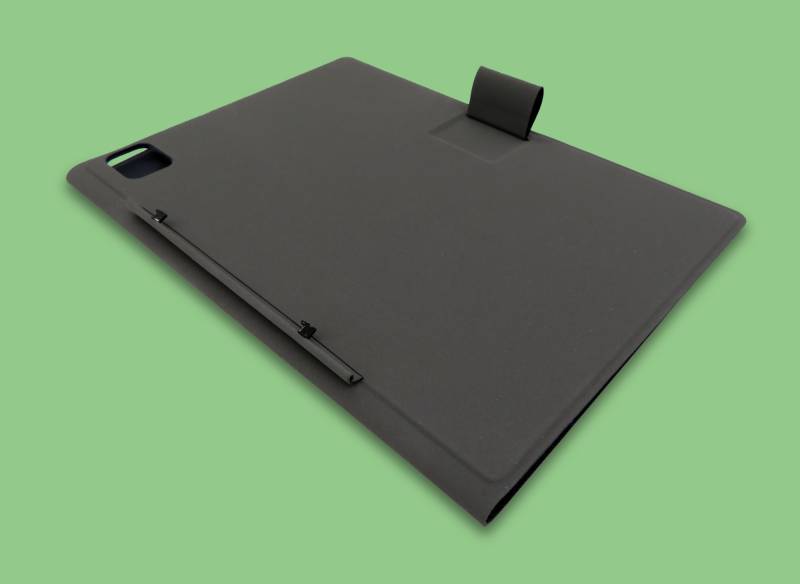
The included case is a folio-style cover with a pen loop.
The included case is an unusual design. Two very small metal prongs slide into slots along the left edge of the device, then lock into place when the device is slid downward. I managed to bend this fixture while using my Note E, so I’m unconvinced it’s robust enough for repeated use – and it’s definitely something that will attract fidgeters.
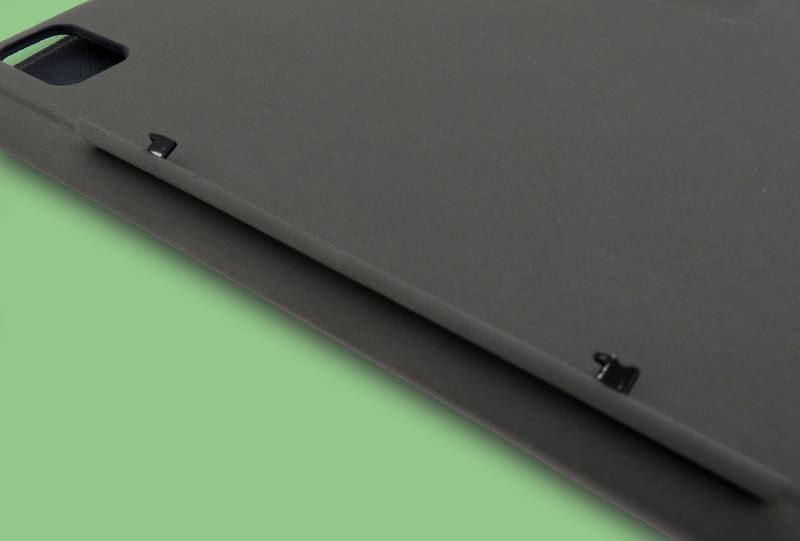
The metal tabs for securing the Note E are small and flimsy.
I would prefer a more typical case design – either a TPU shell or something magnetic. This case doesn’t seem sturdy, and it doesn’t tilt or fold into a stand, which is a miss, in my opinion. Not only that, but the design is more complicated to produce, so there may not be any third-party case options on the market for a while.
There is a pen loop on the case, but it’s strange. It flips over from inside the case, which creates a wear point in the material. The pen fits snugly in the loop only when the device is secured in the case, with the case’s back flap fully against the tablet.
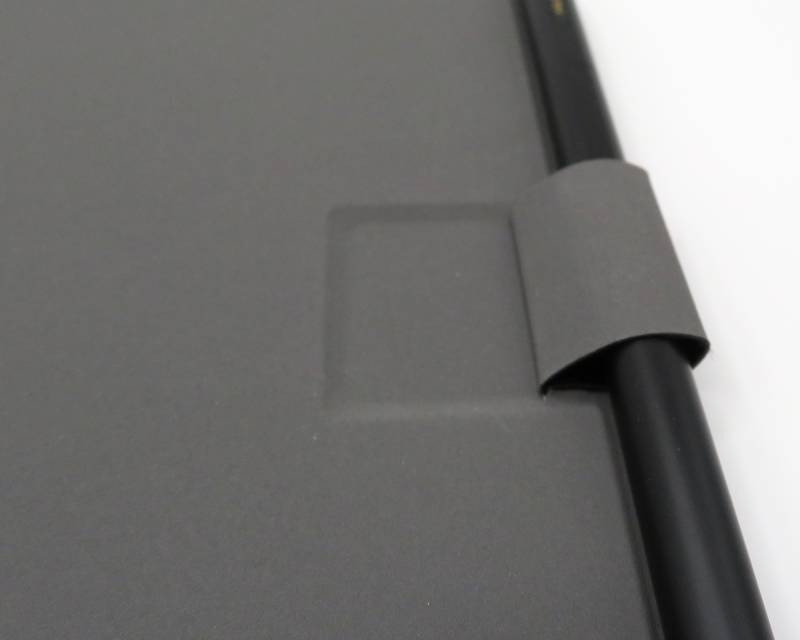
The pen loop is an unusual design that might not hold up over time.
One thing I do like about this case is that it has a pen loop at all! It drives me mad how often I lose the pen to my ReMarkable 2. This case, by comparison, holds my Staedtler Noris digital jumbo very nicely, which is excellent.
A Note on Size…
After using the Huion Note E for a few days, I noticed my left hand developing a bit of a cramp – it turns out it’s rather uncomfortable for my (very) small hands to use this as a handheld note-taking device for too long…unless I’m using an app which allows me to easily disable touch and just use the pen for input (this includes the inbox notes app), because I can then hold the tablet however I please as I write.
My husband, by comparison, has large enough hands to solidly grip the tablet like a notepad. This makes quick, on-the-go notetaking fast and easy. This is something to consider, depending on how you plan on using this device.
As tablets featuring pens go, this one is nice. The hardware feels solid, Android 15 is reasonably fast and runs well, and the EMR pen support is a plus, even if the technology isn’t quite as precise and refined as Wacom’s.
Unfortunately, the software side of this equation is so far off the mark that it makes the hardware a pretty hard sell.
The Software
There’s a lot to talk about here. The software preinstalled on the Huion Note E is abysmally bad. In fact, it’s bad enough to prevent me from recommending this device as a tablet worth adding to your gear.
You can use any compatible app, and since the Note E is a new device, almost everything should work without issue. Note this tablet lacks a real GPS receiver, which means any apps that require precise location (most US banking apps now require this for anti-fraud purposes) will not work.
This makes it possible to work around Hurion’s lackluster software suite…with a caveat.
Google Play Protect: Does it matter?
First: The Note E is not Google Play Protect certified. This hardware certification program enables your favorite Android devices to ship with Google’s official apps preinstalled and fully enabled to launch. The Note E does ship with the full suite of Google apps preinstalled, but this is…legally questionable. A manual procedure is required to bypass the lack of hardware certification; the tablet includes a single-page notebook with instructions on this, if you choose.
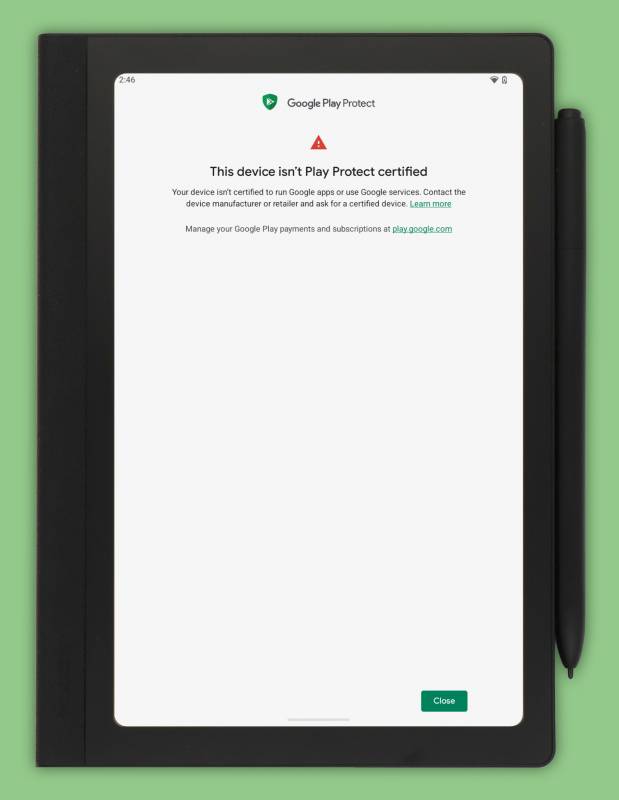
This error displays if you try to use any Google apps (and most games).
Whether or not you actually want to perform this manual registration is up to you. If you don’t, you’ll be unable to use any Google first-party apps, as well as some (not all) third-party apps. On the other hand, this also prevents the use of the Google Services Framework (GSF), so Google can’t spy on you quite as creepily.
I don’t use Google anything anymore, and I’ve had no problems installing various apps using Aurora, an open-source Play Store alternative that makes it easy to anonymously download and install APKs from Google’s CDN.
One important consideration: without Play Protect, you will be unable to make any purchases (or download your existing licenses) from the Play Store. If you have premium apps you want to use with your Note E, you’ll definitely need to register your device for Play Protect.
I’m annoyed that all the Google apps are preinstalled, mostly because there’s no apparent way to remove them. As of this review, no root has been published by anyone, and since all the Google apps are installed as system (rather than user) apps, the only option is to just disable them, which at least removes them from the launcher. I’d rather free up the storage for other things and uninstall them entirely.
All told, the lack of Play Protect Certification is a weird miss. Google doesn’t charge for the certification, but it does add to R&D costs to ensure compliance. Once complete, devices are shipped precertified, making this whole section of my review moot – and customers a lot happier. There’s also the not-so-tiny question of this decision’s legality.
The Launcher
To turn the Note E into more than just another Android tablet, Huion developed its own launcher app, which puts your notes and to-do list front and center.
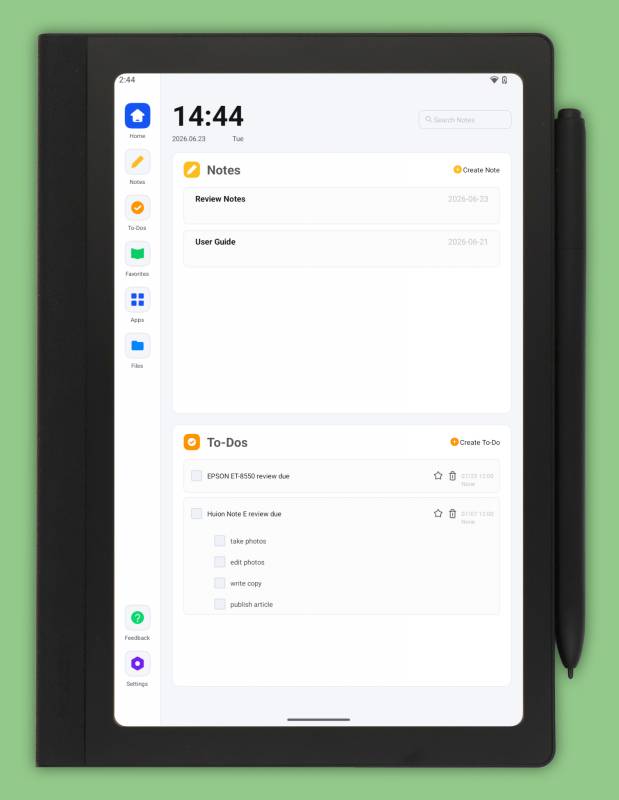
The inbox launcher is simple and task-oriented.
The launcher is very basic; it lacks features you might be accustomed to on your favorite Android devices. There is no support for app folders, and pressing and holding an app icon doesn’t offer one-click uninstallation. There is also no dark mode, which is a significant miss, and it has no widget support. When apps are either installed or removed, the app view doesn’t update until you switch to a different page in the launcher, which is just bad engineering.
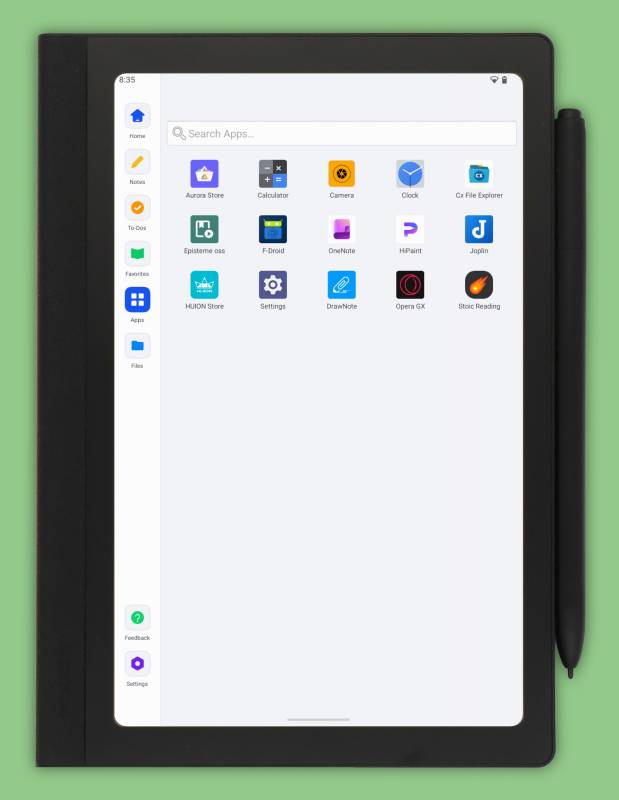
The app launcher is very simple – too simple, even.
The Favorites section pins your favorite Android apps, which is pretty much the only way to categorize your apps, and it’s limited – apps are always stuck in order of addition to the page. The Files icon is a shortcut to the native Android file browser and cannot be customized to launch any other file browser.
The launcher also features two functional sections – Notes and To-Dos. Both of these appear to run as child processes of the launcher; the regular app switcher never shows either.
To-Dos
The to-do list app is, like the launcher, very basic. You can’t categorize or tag your to-dos, nor can you maintain multiple lists. Some of this is addressed by allowing nested lists (but only one level), but the interface for this is rather annoying and clunky.
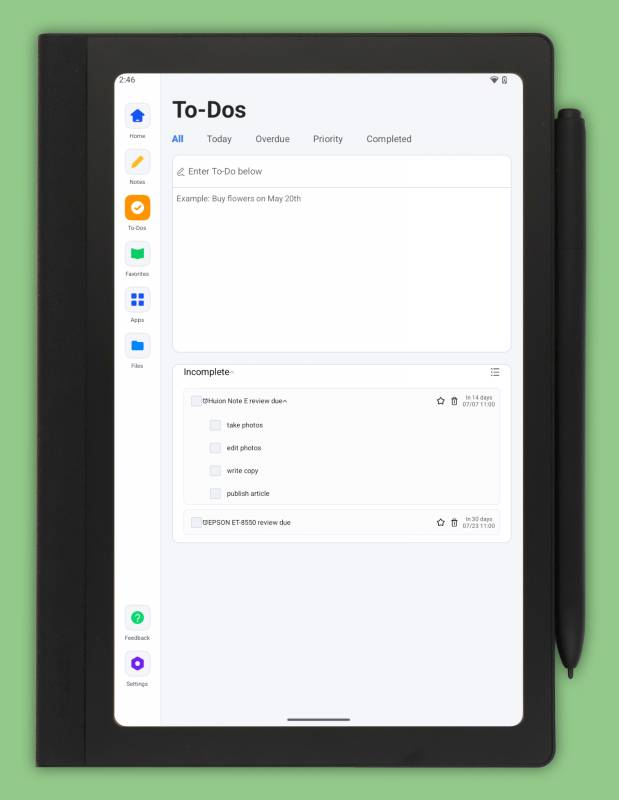
The To-Dos app is, like the launcher, very basic.
The basic idea of a to-do applet, available right in the launcher, is good, but I really wish it supported any selected app and used standard widgets for surfacing information on the home screen instead.
Notes
Huion published a version of the Note E’s inbox Notes app (Play Store page is here), so you can try it on your favorite supported Android device. The inbox app is very similar (but not identical).
I’ve become familiar over the last few years with three popular digital notebook devices: the Kobo Libra Colour, the (now discontinued) reMarkable 2, and the BOOX Palma 2 Pro. Each has its strengths and weaknesses; none are perfect. All three devices, however, have solid notebook apps.
Huion’s Notes app is more barebones than Kobo’s, and Kobo’s is an extra feature added to the main software, rather than the star of the Kobo show. The Note E, by contrast, is a notebook first and an Android tablet second, and its notebook app in the inbox is just very lackluster.
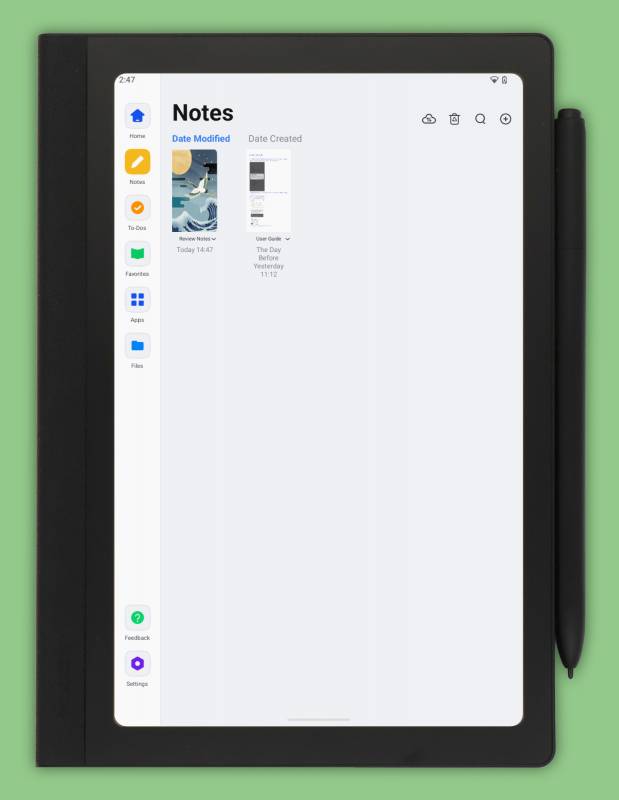
The Notes app allows notebooks to be organized into folders and subfolders.
We’ll look at the features it does have first.
Notebooks can be organized into folders, and each notebook can have multiple pages. The notebook cover is configurable, but not customizable: you can’t use your own images as covers. Pages are configured individually, and the page manager makes it very easy to add and reorder pages, but it’s not possible to duplicate pages (another miss).
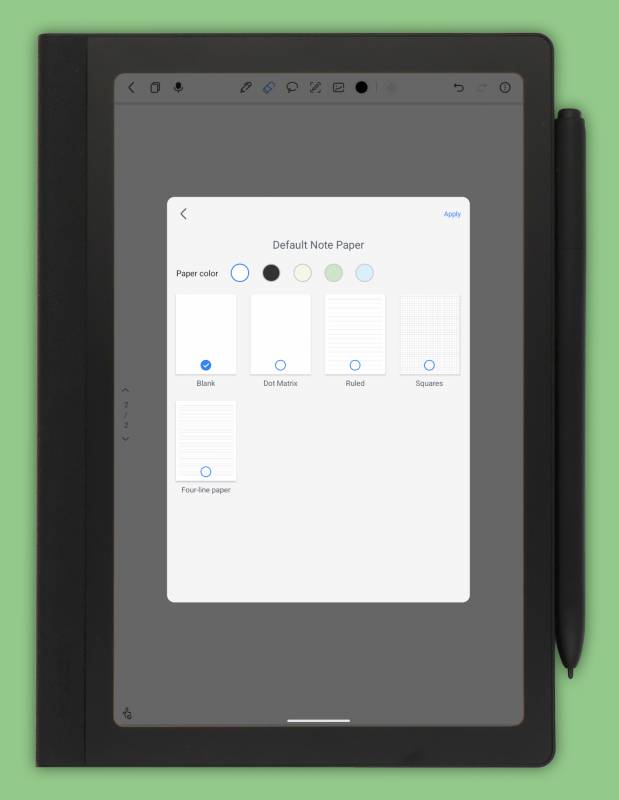
Notebook pages may be individually customized.
The toolbar in the screenshot above features the following:
- Writing tools (fountain, ballpoint, highlighter, dashed line)
- Eraser
- Lasso
- Text (this opens a screen to input text by hand, and it converts to text as you write)
- Image import
I have several major complaints about this app:
There is no copy-paste function. I use this liberally on my other digital notebooks, and I really can’t believe Huion hasn’t added this to its app yet. Rapid copying and pasting of elements in a diagram or drawing is one of the most compelling benefits of digital notebooks. And I mean… copy-paste has been around since the earliest days of computing. This reason alone is why I have not used the inbox Notes app for anything other than evaluation for this review.
Pen latency is unacceptably bad. I was surprised to discover a noticeable improvement in pen latency (the delay between writing and digital ink appearing on the screen) just from switching to a different notebook app! This implies there are some significant performance problems with Huion’s Notes app, and this really needs to be prioritized.
There are no templates. This is another bad miss for a digital notebook. It’s possible to import PDFs as notebooks, but this appears to be one-way, and it isn’t as convenient as templates. If Huion doesn’t want to maintain a repository of available templates, it would be nice to make it easier for users to create their own templates from notebook pages. This is supported by the BOOX notebook app, and it made it very easy and low-friction to make a to-do list template right on my Palma 2 Pro.
Cloud sync doesn’t work. The interface indicates that cloud syncing supports Google Drive, OneDrive, and Dropbox, but I was unable to complete the OneDrive configuration because the auth page disappeared almost immediately after loading. The Note E was only released last month (May 2026), so this might be a bug Huion is actively fixing. I would much rather use WebDAV to sync my notes – this is something BOOX supports, and since it’s relatively easy to set up a Linux-based WebDAV server, it makes for totally private notes backup and sync.
None of these is an insurmountable problem. I really hope Huion invests some effort into giving their Notes app a major glow-up.
Using Other Notebook Apps
Fortunately, since the Note E has an LCD rather than an e-ink display, the Android digital notebook app of your choice should work with no issues at all. Some apps require GSF, and since I haven’t allowed this on my Note E yet, I couldn’t test them.
- I’ve been using DrawNote, which offers a lot of features without paying anything and doesn’t have ads. It would be great if I could just link the Notes icon on the launcher’s sidebar to the notes app of my choice.
- Microsoft’s OneNote Android app is very mature for pen-enabled devices, and it works great without GSF. Beware, though: highly complex OneNote notebooks have been known to barf out of nowhere. It’s fine for use as a notepad.
- Since this is more or less an Android device with a pen like any other on the market today, any pen-aware notebook app should work pretty well on the Note E. Look for apps that advertise support for the Samsung S Pen; these should work well with the Note E.
Conclusion
There are aspects of the Huion Note E’s hardware features I really like, but there are also some pretty serious missing software features, without which I just can’t give this tablet a high rating or a strong recommendation. If you’re okay with the mediocre dark mode support (the only means of a quick toggle is by enabling the battery saver mode), a really poorly designed launcher, and dependency on third-party notebook apps, at least for the time being, the hardware is really nice.
I’ve been using my Note E regularly for about a week, and it’s quite nice to handle and use. I definitely have to disable touch in DrawNote to hold it comfortably, but this is very trivial and not a problem at all. The screen’s etched finish is very nice, but I will be applying a PET screen protector as soon as it arrives, because I know how hard I am on displays. If you’re not worried about this, it’s a very premium display and worth the price of admission.
Huion absolutely needs to work on their software, though, or the Note E is never going to hit as well as the competition. The device is generally snappy and multitasks fine, so it’s not a matter of inadequate specs; the software just needs some refinement in several key areas. With the Note E being so new, I expect to see improvements over time, and with such updates, this will be a top-notch notebook option for those looking for an LCD rather than an e-ink display.
The lack of Play Protect Certification is a double-edged sword: it guarantees Google isn’t spying on you one iota until you choose to register your device, but without registration, there’s an awful lot you can’t do. I’d buy DrawNote Premium if I could; I have yet to find an ad-free sudoku game with both pen support and no Play Protect dependency. Regular apps (not games) seem to work just fine on average without Play Protect, but games much more often won’t work at all.
I really don’t like the cover. It’s perfectly suitable for protecting the device, but when third-party cases inevitably appear, I’ll be looking for something a little more robust, like a TPU shell with a folio cover. And, while Huion’s EMR implementation isn’t as advanced as Wacom’s, I had no problems writing in small cursive, once I started using DrawNote. The latency of the inbox Notes app affected my accuracy, so if you have trouble out of the box, try a third-party app before returning the hardware.
The Note E almost feels like an unfinished product. I very much hope Huion is going to make the improvements necessary to add the finishing touches to the central features of this device, because the hardware is slick and well-designed.
The Huion Note E retails for $369; it is available directly from the manufacturer and other retailers, including Amazon.
What I Like: Beautiful display; Solid general Android performance; EMR pen works well (in third-party apps); It’s a good size for handheld notetaking
What Needs Improvement: Inbox software is unusably bad; No Play Protect Certification; No dark mode; The included case is fragile