


The Lowdown
The EPSON EcoTank Photo ET-8550 is a solid member of EPSON’s current printer lineup. If you need large format printing at high resolution with good color reproduction, the ET-8550 is worthy of consideration. It is the highest-resolution, large-format EcoTank printer on the market today and will meet the needs of any creative maker or hobbyist looking to upgrade to large-format printing without breaking the bank on ink.
Overall
Pros
- Excellent print quality
- Superior color depth with six-ink printhead
- Large format expands creative potential
Cons
- Drivers and software need updating
- Scan bed dust is a persistent issue
Consumer printing is a funny business. Once ubiquitous, home printers have become less essential in our increasingly paperless world. Still, desktop printing remains important for photographers and artists who rely on high-end inkjets (and high-end ink) to create original prints—what “giclée” actually means. The EPSON EcoTank Photo ET-8550 is one such premium photo printer, with large-format support up to 13″ × 19″ borderless, or nearly 256 feet using the rear feeder and a paper roll. It’s EPSON’s premier photo printer, with a price to match. The real question is whether it’s worth it. Let’s find out!
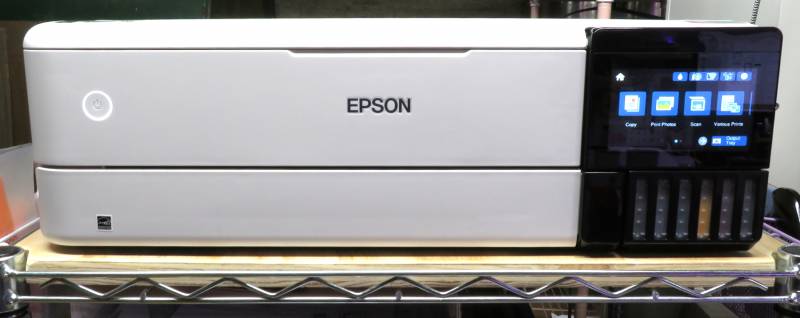
The ET-8550 is rather unassuming from the front.
Prologue: What Happened to Home Printers?
When inkjet cartridges reigned supreme, printer OEMs were selling hardware at a loss, expecting to recoup the lost revenue in post-purchase consumable sales. This was a bad gamble, as ultimately consumers figured out it was cheaper to replace their printer rather than buy extremely overpriced replacement OEM ink. This made the printer loss model economically infeasible, and as market forces tend to do, OEMs started brainstorming alternatives.
In 2010, Japanese printer OEM EPSON released the first EcoTank printer, the L100, in Indonesia. This printer introduced consumer bulk ink to the world, with a set of four tanks (CMYK) which could be easily refilled from larger bottles of ink. The concept of bulk ink tanks with inexpensive bulk ink is obviously appealing to at-home printer consumers, and the L100 was a runaway success. EPSON then expanded the EcoTank concept to their global market with the launch of the L110, permanently changing the landscape of consumer inkjet printing.
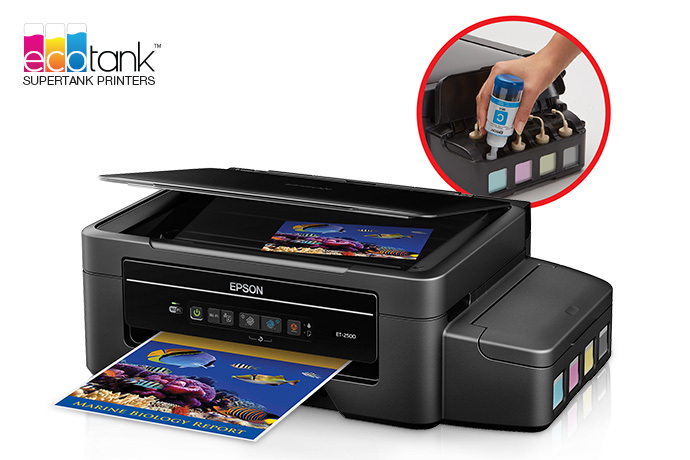
The ET-2500 was one of the first EcoTank printers available in the United States.
Bulk ink is much less expensive compared to cartridges, and the real consequence of this seismic shift has been realized in the general quality of home printers today.
I’m the de facto tech support for my local community, so I’ve dealt with a variety of modern budget inkjet printers and their commensurate problems. Unfortunately, a $300 printer in 2026 means low-quality parts, short lifespan, and a lot of frustration and headaches. This is true regardless of brand, because quality mechanical parts cost more money, and sometimes it’s a lot more money (like the difference between using either a cheap alloy or a polymer compared to hard metals for gears and sprockets).
This means I’m inclined to favor (and recommend to others) more expensive, high-end inkjet printer models, because they’re more likely to be built well enough for you to get your money’s worth before inevitable replacement.
The ET-8550 definitely fits the bill for a high-end inkjet photo printer, with its six-channel printhead, large feed width, and support for thick media (up to 1.3mm). It’s EPSON’s absolute top-end EcoTank photo printer for prosumers and small-time professionals – only the SureColor family beats it in the available spread of formats and ink channels.
It’s really impossible to know the longevity of the hardware without direct and aggressive testing to the point of failure, but I think this model’s mechanical parts are likely to last a reasonably long time.
Tech Specs
The EPSON EcoTank Photo ET-8550 is both a printer and a scanner. Although the printer supports a maximum media width of 13″, the scanner is unfortunately still limited to 8.5″-wide materials, although it does feature a 14″ long scan bed for extra-long documents and wide books. The full specifications of the printer are rather extensive; if you are interested in all the details, you can check those out (non-PDF version), but we’ll cover some important details here.
Printer Specs
- Six-channel, 1440 dpi printhead
- 15 monochrome (12 color) pages per minute
- Automatic duplexing
- Wired (100mbit) and wireless (802.11ac, both 2.5 and 5.0 GHz) connectivity
- AirPrint, Mopria, and Android print support
- Maximum 13″ × 19″ flat media at 300 gsm (110 lb cover)
- Borderless printing in a variety of fixed sizes
- Direct disc printing
- USB (up to 2TB, FAT32 or exFAT) and SD card (up to 64GB) support
- 4.3″ 480 × 272 color touchscreen with tilt
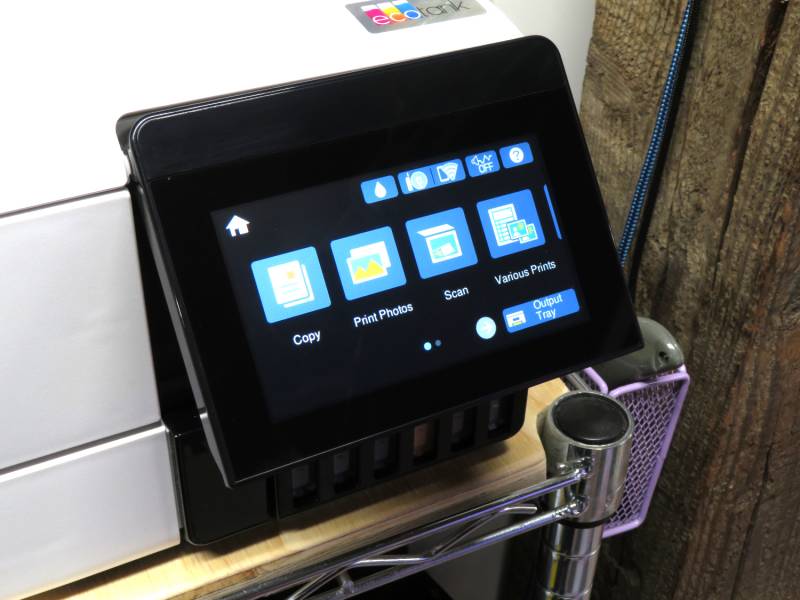
The large touchscreen makes operation easy and (mostly) intuitive.
Scanner Specs
- Maximum scan area: 8.5″ × 14″ (standard legal)
- Maximum resolution: 1200 × 4800 dpi
- Maximum color depth: 48-bit color, 16-bit grayscale, 16-bit monochrome
Why Six Ink Channels?
The EPSON EcoTank Photo ET-8550 is equipped with a very high-end printhead, with a maximum resolution of 1440dpi. By comparison, the average desktop inkjet printer tops out at 600dpi. The higher resolution afforded by this printhead enables much higher fidelity photo prints, which is crucial for photographers looking to sell (or even just display) their best shots.
With six ink channels, this printer goes beyond the standard CMYK (cyan, magenta, yellow, and black), adding both gray and a second black channel. The two black channels are differentiated by matte and photo – the matte black is a pigment ink intended for use with matte media; the photo black is a dye ink intended for use with glossy media. The difference allows black to appear richer and darker on high-gloss premium coated paper, because dye ink doesn’t obfuscate the glossy finish, unlike pigment.
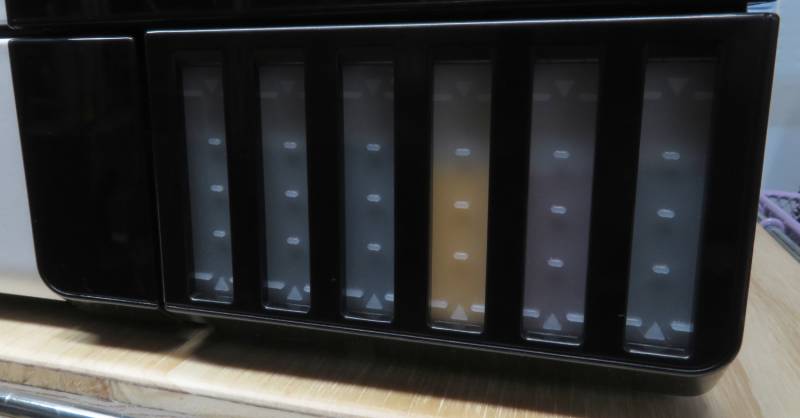
The six ink tanks feature easy-to-read markers to remind you to keep your ink at the minimum level at all times.
The gray channel significantly reduces graniness in transition between darker and lighter shades, which makes for much smoother gradients and better overall color reproduction. It also makes for much better monochrome photo prints.
If you’re an expert photographer with a desire for superior color reproduction and archival quality, you’ll want to look at EPSON’s higher-end SureColor inkjet printers, which use pigment, rather than dye, inks and feature additional ink channels for colors like red, orange, green, violet, and additional grays. For most folks, the ET-8550’s six-channel system offers excellent color reproduction without the added expense of all those ink channels.
The EcoTank Ink Supply System
EPSON’s EcoTank system is nothing proprietary – it functions on the same principles as aftermarket continuous ink supply systems (CISS), but lacks some of the more annoying side effects of third-party printer modification. EPSON’s first-party ink bottles feature a unique key shape (branded EcoFit) on the fill tip of each, to prevent you from mistakenly putting the wrong ink into the wrong tank.
This is a messy and tedious mistake to fix, so if you use third-party ink in unkeyed bottles, always triple-check your ink colors before refilling!
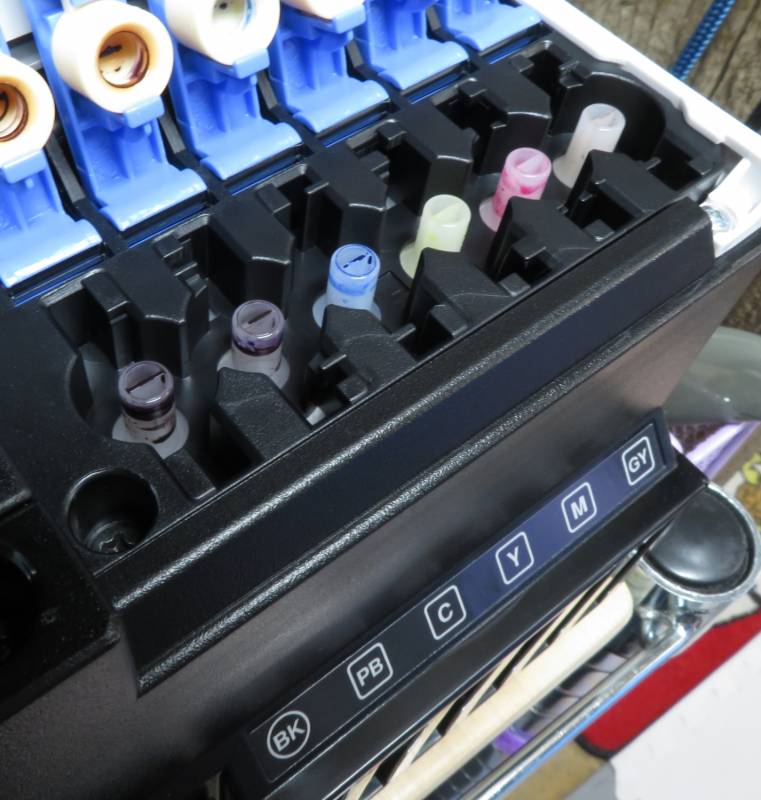
The EcoFit system makes refilling foolproof – if you’re using EPSON ink, that is.
Automatic Duplexing (2-Sided Printing)
The ET-8550 is equipped with an automatic duplexer which, unlike desktop laser printers, supports media sizes other than letter and legal! The duplexer supports the following media dimensions:
- Letter (8.5″ × 11″)
- A4 (8.3″ × 11.7″)
- A6 (4.1″ × 5.8″)
- Executive (7.25″ × 10.5″)
- Statement (5.5″ × 8.5″)
The duplexer does not support media other than plain, uncoated paper at a maximum weight of 90 gsm (24 lb).
Media Trays and Feeds
The ET-8550 features two paper cassettes, the lower of which may be preloaded with a small stack of paper. The upper cassette is for printing on small media, as well as printable discs. The disc print tray is stored under the bottom cassette (labeled 2 in the image below).
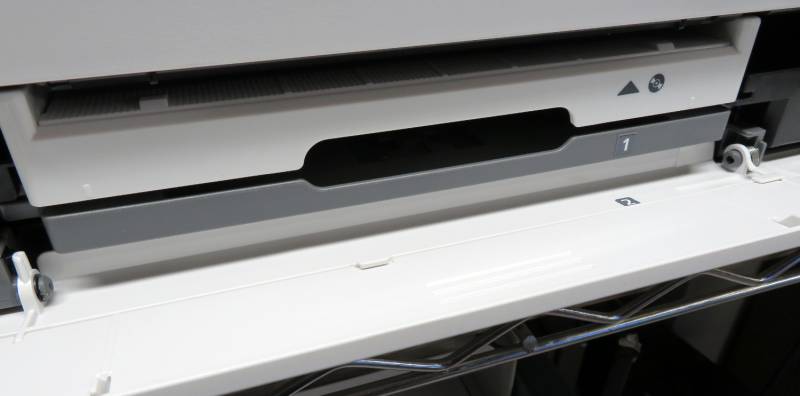
The EPSON EcoTank Photo ET-8550 features two paper cassettes. The output tray is above the cassettes.
The paper feed path for both cassettes is a U-turn, meaning the paper will curl a bit as it’s fed under the printhead. By contrast, the rear feeders use a straight-through path. The top rear feeder will probably be what you use most often for printing on various specialty media, while the rear feed slot is useful for stiff materials (like cardstock and chipboard up to 1.3mm thick). The rear feed slot is also limited to a fixed set of media widths – if you try to use a custom width, you might experience feed issues.
The first paper cassette is designed for single sheets of small media, while the second cassette holds up to letter-size paper and is useful for keeping copy paper on hand for test prints, nozzle checks, and other maintenance tasks.
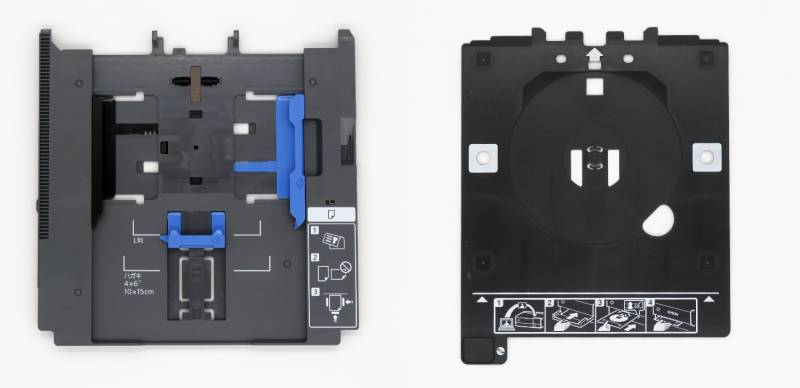
The trays shown here are for small paper (L) and printable discs (R).
Because this is such a large format printer with a wide rear feed path, the nested assembly for extending the supports behind the feeder is rather heavy. Be sure to always keep a strong, firm grip on this assembly when extending and stowing it, so you don’t damage its mechanism.
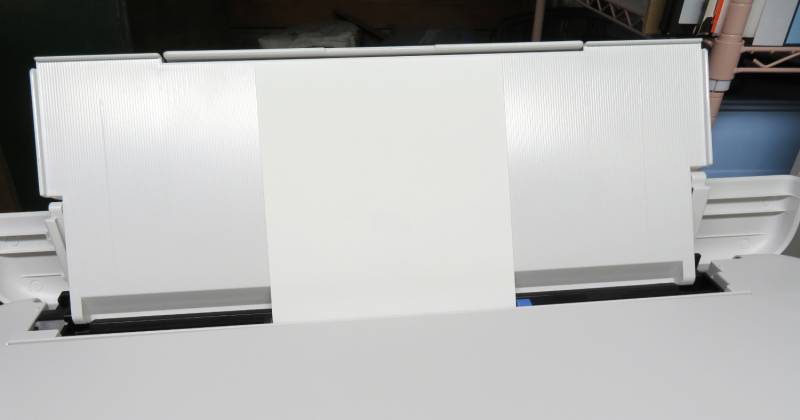
The rear feeder is for large format media. 8.5″ wide paper looks so small!
Finished prints are fed through the front of the printer. The output tray extends on its own to the appropriate size for your print job settings.
As mentioned in my intro, this printer also supports rolls of paper. You can print a banner up to 78″ long and 13″ wide using the rear feeder, which is a super cool feature for party decorations and large projects.
Borderless Printing
Like the duplexer, the borderless print feature is limited to specific media dimensions and types. Plain paper and cardstock are not supported, but EPSON’s premium papers, both matte and glossy, are, in a variety of standard photo dimensions.
It’s worth noting something important here: borderless printing necessarily involves ink overspray, beyond the edges of the media. This is absorbed by non-serviceable ink waste pads under the paper feed path, and the firmware tracks the consumption of these pads with a counter which cannot easily be reset. In other words, once the firmware registers that these pads are fully consumed, your printer will be a boat anchor unless you take it to a certified EPSON service center for maintenance.
The EPSON EcoTank Photo ET-8550 does feature one user-replaceable maintenance box, which handles general waste ink disposal from the ink delivery system during various maintenance routines.
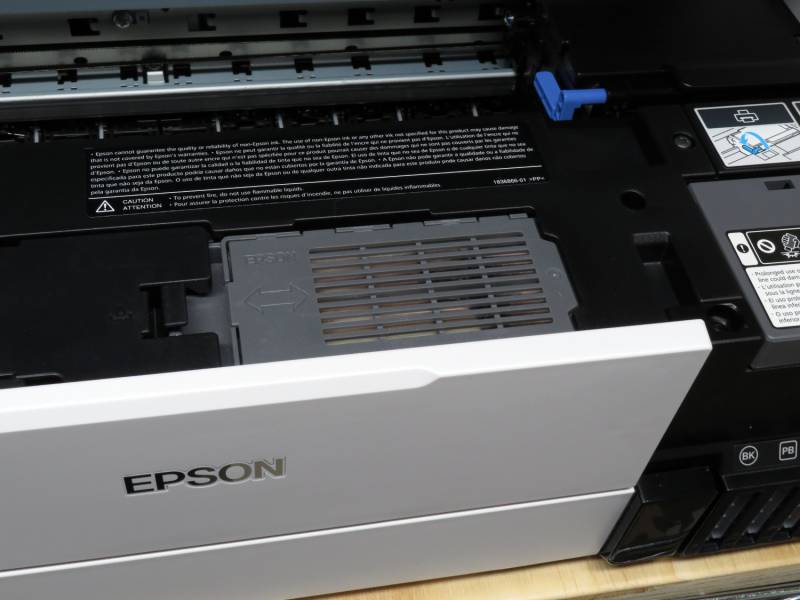
That little gray box needs to be replaced once in a while – EPSON OEM is around $125; aftermarket is much cheaper.
The Scanner
The integrated scanner on the ET-8550 is relatively low-resolution compared to EPSON’s standalone photo scanners, with a real optical resolution of 1200×4800 dpi. This is more than enough for reproducing documents, photos, and mass-produced media, which are printed with a visible halftone pattern in most cases (lithographs can go beyond the CMYK print process). I only scan at 1200dpi when I’m archiving vintage printed materials, because scanning at this resolution is very s-l-o-w.
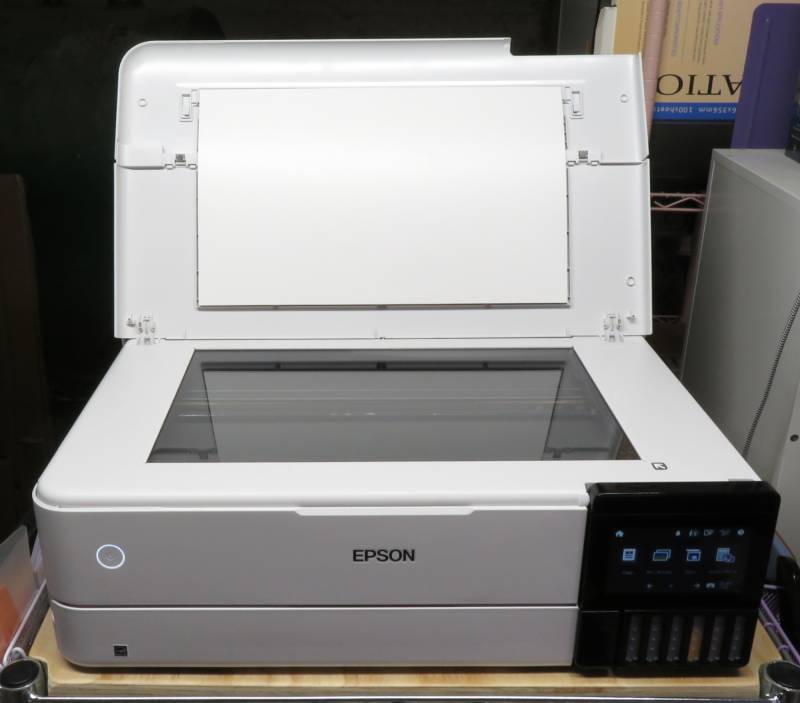
The scan bed is large enough for legal (8.5″ × 14″) materials.
This scanner uses a contact image sensor (CIS), which is fine for scanning flat materials, but runs into problems with unusual media and objects. For advanced scanning, you’ll want to stick with dedicated, CCD-based hardware.
The scanner hardware is the same 8.5″ width found in EPSON’s smaller multifunction machines. I really wish this printer used a wider scanner, because it makes it easier to reproduce things like vintage ads, which are often tabloid (11″ × 17″). I mostly understand why EPSON went with standard scan components, but I think the market for a large-format EcoTank printer is already small enough; most current owners of this printer would be pretty jazzed if it had a larger scan bed.
The large scan bed cover is the full width and (almost) depth of the printer’s footprint, with a split longways. This makes it possible to close the scan bed without fully closing it, so you can check and ensure your material hasn’t shifted from the air movement created by closing the cover. This is especially important for glossy materials, which tend to glide a little too easily across the scan bed.
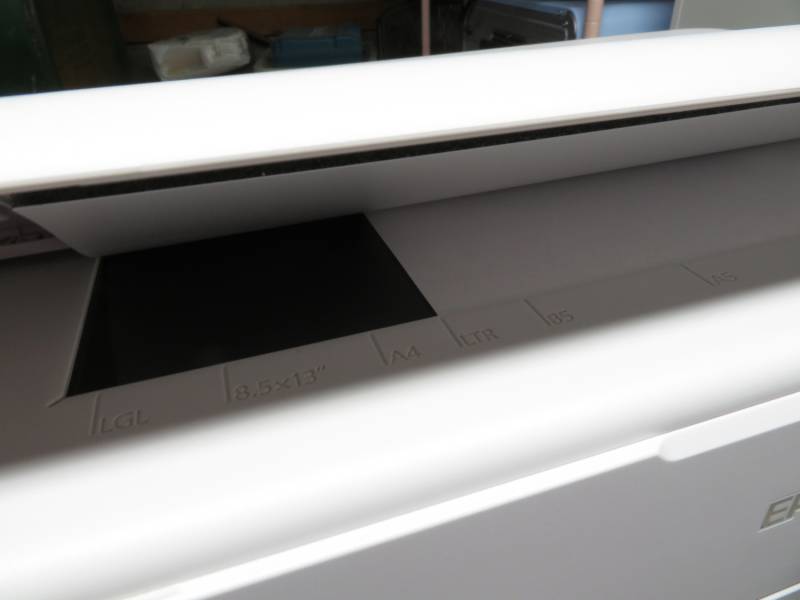
The scanner lid is split lengthwise, which makes it easier to adjust document positioning just before scanning.
I was disappointed to discover factory dust under the scan glass, and after several unit exchanges with dust under the glass, it’s hard to know exactly what happened. If you’re particularly concerned with the possibility of any scan bed contamination, it’s probably a good idea to find a local physical retailer, so you can ask about inspecting the scan bed before purchase.
The Software
There is a suite of software that has been built to support the EPSON EcoTank Photo ET-8550’s features. These are worth investigating thoroughly, because you will likely find yourself making heavy use of the various software interfaces EPSON designed for getting the most from your hardware. You can check out the full list of available software downloads here.
There are several particularly interesting components:
- The print driver
- EPSON Scan 2
- EPSON ScanSmart
- EPSON Scan OCR Component
The Print Driver (Windows)
The driver installer prompts to choose between a networked or USB printer. I connected my EPSON EcoTank Photo ET-8550 to wifi, and the driver installer found it immediately and finished installing the driver. Once installed, you can access print preferences from either the Settings app (to set default preferences), or through any application which supports printing.
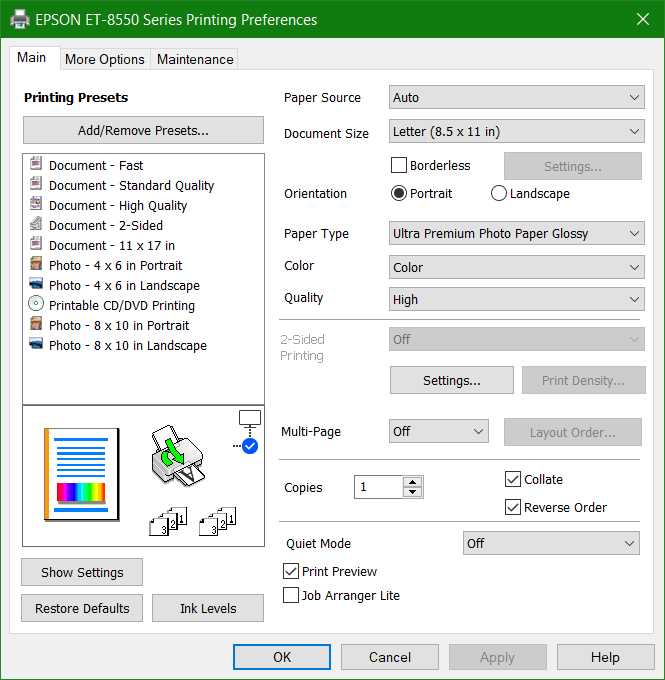
The print driver is comprehensive.
Print drivers have changed a lot since the days of yore, and EPSON’s current driver is very smart. The real print resolution of each of the four quality settings (Draft, Standard, High, and Best), as well as which quality settings are available, varies based on the selected media. Ultra Premium Photo Paper Glossy offers the highest-quality output with the Best setting, which uses a sort of microdithering to achieve a very high-quality print in larger formats, especially when printing photographs.
EPSON does not enable setting a specific print resolution in its driver, so it’s important to select the optimal media type for your project.
Selecting the right media is also important for which inks and color profile are used. Glossy, semigloss, and luster papers use the dye-based photo black ink; plain and matte papers use the pigment-based matte black, instead. If you allow the print driver to manage color, it will apply a profile based on the selected media type. If you use advanced color management, however, media selection does not affect color output.
The EPSON EcoTank Photo ET-8550 is very particular about media width. If you don’t correctly set the print driver to the width of your actual media, you risk messy and frustrating (and expensive, if your media is premium!) jams. To set custom sizes, select the User-Defined option next to Document Size to open a dialog box where you can set custom sizes in both imperial and metric dimensions.
This printer supports a very wide range of dimensions – the absolute smallest it can handle is 2.13″ by 3.39″, or 54 cm by 86 cm. Annoyingly, both the US driver and the firmware loaded on the printer are missing A5. This seems to be intentional with the US version of the driver and printer firmware, although I wish it were included.
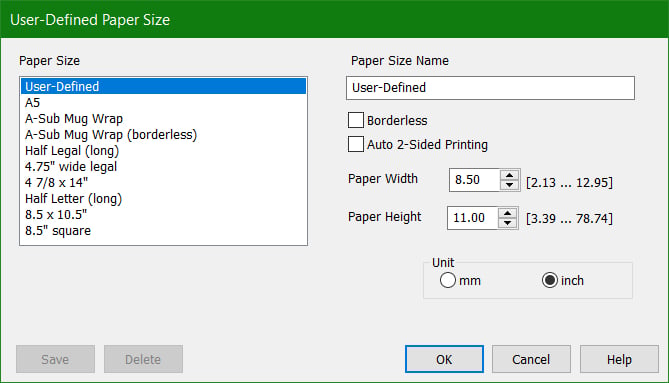
It’s easy to add custom paper sizes in both imperial and metric dimensions.
EPSON prides itself on its color reproduction, and for most users, the built-in automatic profiling should give you excellent results. However, for those more interested in detailed calibration of output on different types of media, the driver supports advanced color controls, as well as color correction with an ICM profile. It’s also possible to disable color management entirely, which allows you to rely on your favorite graphic design or desktop publishing software to manage color.
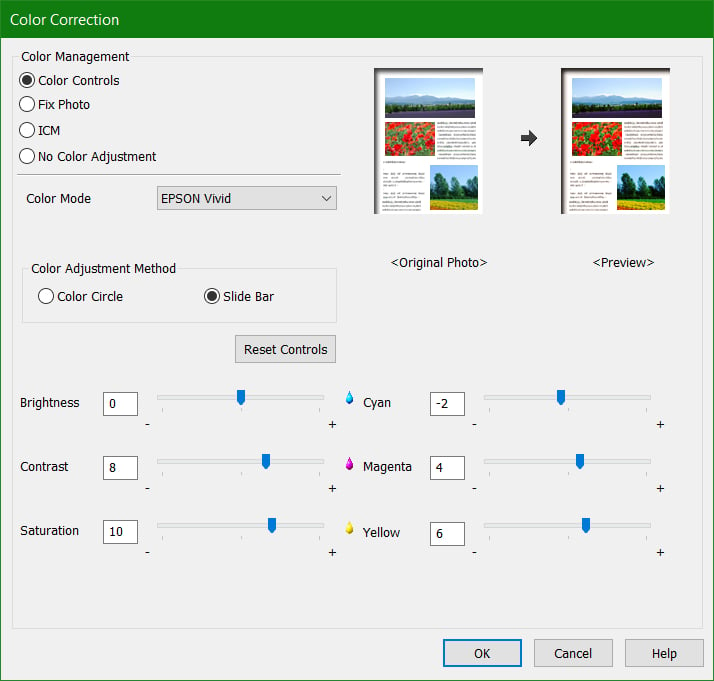
The EPSON print driver enables advanced color tuning, or you can load your own ICC profile.
As with its much older printers, the driver includes a print preview function, which I find indispensable for ensuring my color profiling is correct, and my paper is fed from the correct edge. What is somewhat annoying about this feature is how badly it shows its age today. I was surprised to discover the print preview tool in 2026 is virtually indistinguishable from the 2008 iteration used by my RX595’s driver.
The UI doesn’t scale, and it’s not possible to really zoom in on the preview to double-check things. I also really wish the print preview was more consistent in how it reflects color profiling information. When configuring color through the print driver, the print preview doesn’t appear to approximate the resulting color output, while profiling through an application (like Affinity or Adobe software) does alter the print preview.
I’m not sure why this is – or why it’s still a problem almost 20 years downstream from older libraries and components.
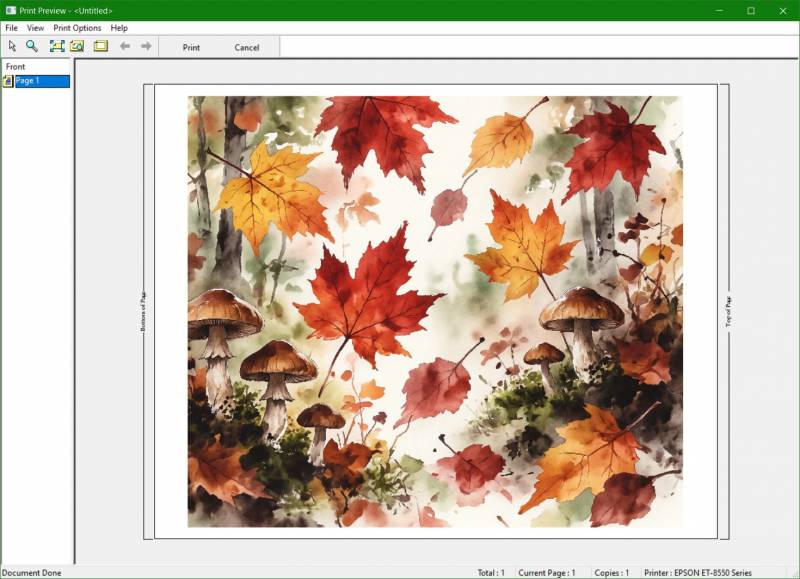
EPSON Print Preview is useful for verifying before printing, but it needs a glow-up.
EPSON’s current print driver is comprehensive, but it still lacks in a few areas. Given EPSON is one of the premier printer OEMs in the world, I would very much like to see some effort invested in updating and refreshing the core components they are pretty obviously reusing across numerous iterations of their driver packages.
Scanning Software
To support its repertoire of multifunction printers and dedicated scanners, EPSON offers two applications: ScanSmart and Scan 2. Both can convert scanned documents to text, known as optical character recognition, or OCR (more on this below).
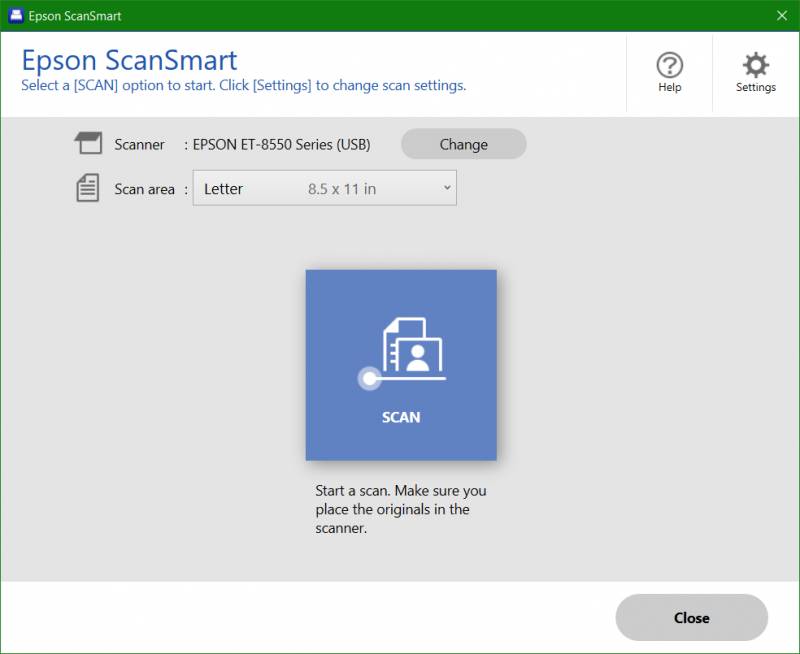
EPSON ScanSmart is a foolproof interface for quick and easy scanning.
ScanSmart is a simplified, consumer-friendly interface intended for foolproof, all-purpose scanning. It supports automatic adjustments for scanning both photos and documents, performs basic photo corrections, and can share files via email or several cloud storage providers.
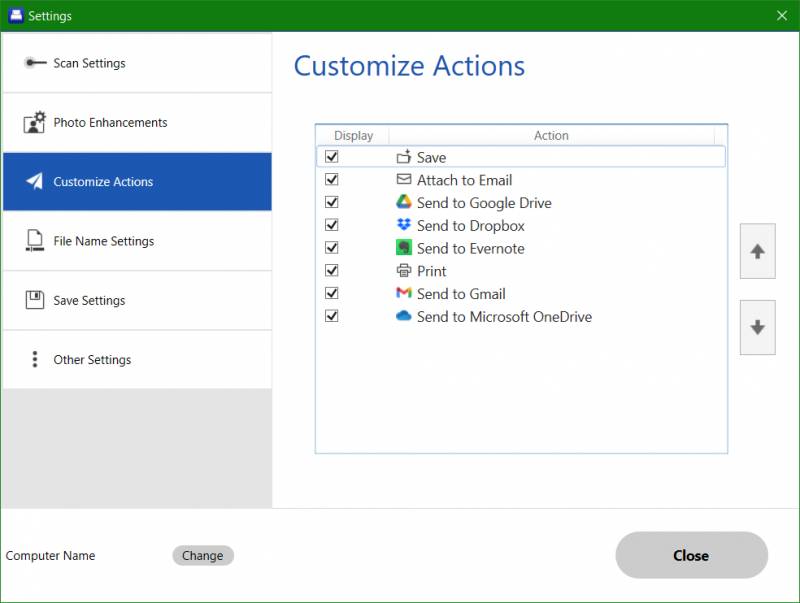
The included OCR features use an engine now owned by Tungsten Automation, which has also been branded Kofax, Nuance, and OmniPage in past lives. ScanSmart and Scan 2 do not use the same engine, and for me, the real reason for installing ScanSmart is because when it comes to OCRing archived material, the more tools in your arsenal, the better.
Beyond OCR, however, pro users will want to rely on EPSON Scan 2, which is an updated version of the EPSON Scan software used with my old RX595.
EPSON Scan 2
EPSON’s more comprehensive scan utility is called Scan 2 and is geared toward advanced users, such as archivists and reprinters (like me). While the EPSON EcoTank Photo ET-8550’s scanner is not nearly as fancy as more advanced CCD-based archival scanners, it does work very well for basic archiving needs.
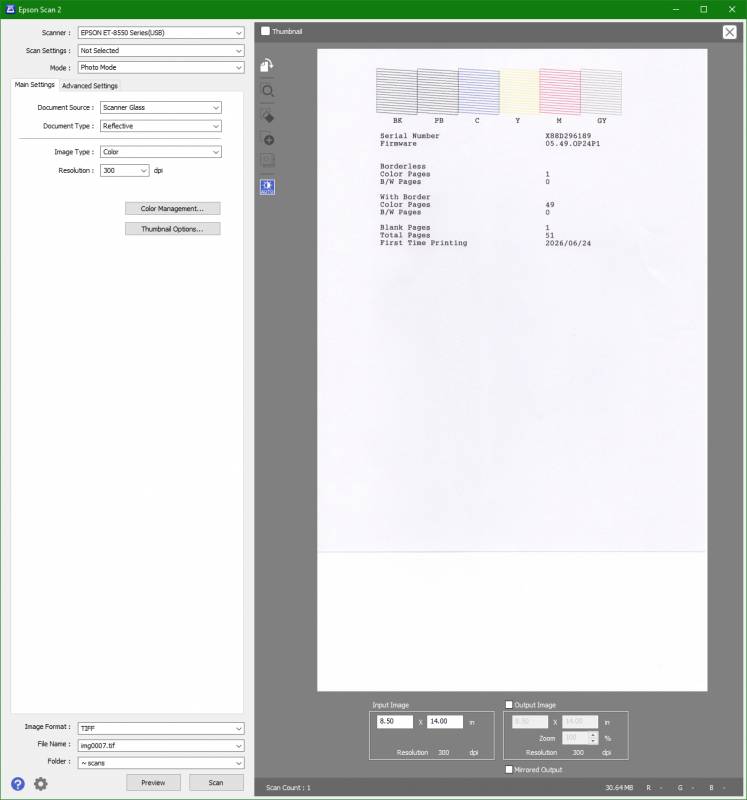
EPSON Scan 2 is an advanced interface for operating the ET-8550’s scanner.
Scan 2 supports two operational modes: Document and Photo. Document uses a high-contrast auto-adjustment profile for obtaining optimal results when scanning printed text of all sorts.
Its maximum configurable scan resolution is 1200 dpi, whereas Photo mode’s is 9600 dpi. It’s important to emphasize here: the maximum optical resolution of the ET-8550’s scanner is 4800 dpi, which means anything above this is upscaled and interpolated by the software.
Along with higher resolutions, the Photo mode enables advanced color management. The ICM mode lets you use ICM v2 color profiles installed in the Windows system color profile directory, while turning off color management results in an unadjusted scan, which you can then manually adjust in your favorite image editor.
It’s easy to create multiple capture areas across the entire scan bed, so if you’re scanning photos, you can fill the bed and then individually scan each one. One of my hobbies is digitally archiving cartomancy decks, and this feature makes it easy to lay out multiple cards on the bed and scan them as individual files.
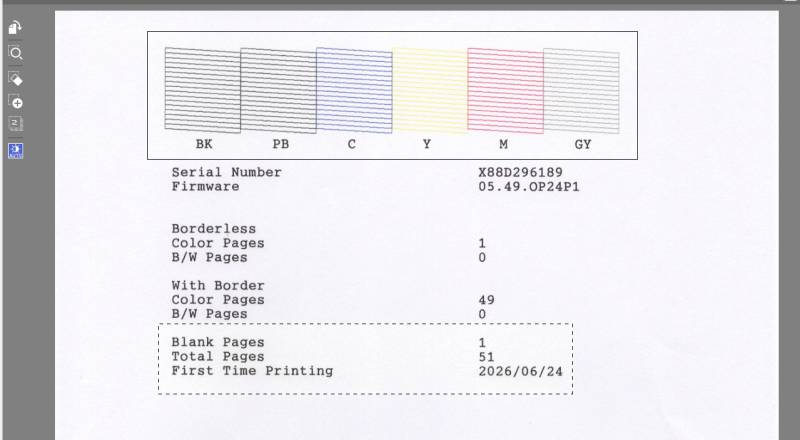
EPSON Scan 2 makes it very easy to scan multiple items on the bed as individual files.
The Document mode, meanwhile, makes it easy to create a single PDF from multiple scans. The Searchable PDF option OCRs the scanned pages using the ABBYY FineReader engine, which is very mature and robust. This is the same engine used with CZUR’s family of book digitizers, and it’s very good at working with a wide variety of typesets and print layouts.
A useful tip: make sure to enable the Use Quality Mode toggle in Scan 2’s configuration, under the Preview tab. This will auto-size the scan preview area to the size of the window, which is really great on a 4k display.
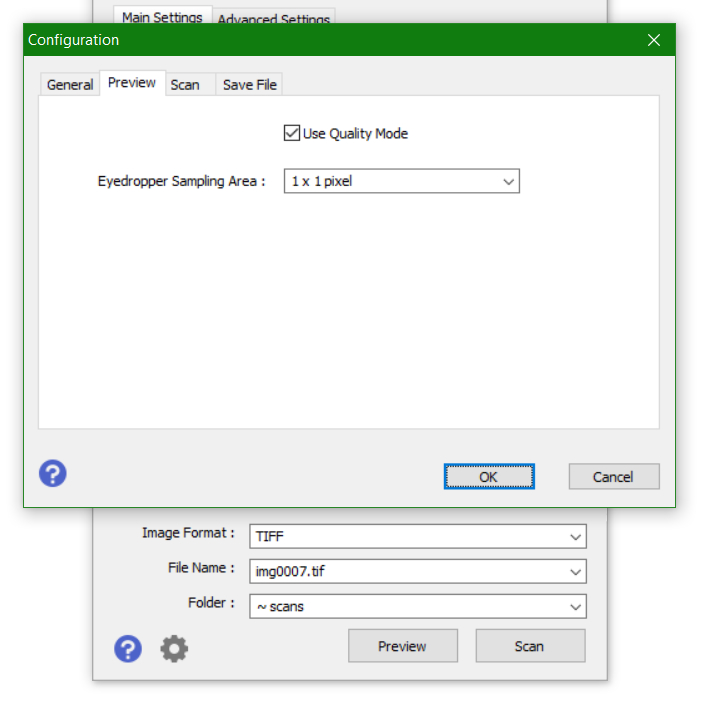
The “Use Quality Mode” makes precision scanning simple – hit the gear icon to access this window.
Scan 2 is more or less a standalone TWAIN interface for EPSON’s scanners. Microsoft axed TWAIN years ago, and Windows Image Acquisition (WIA) is too simplified for advanced users, so Scan 2 fills the gap as a basic interface for operating your scanner.
It’s serviceable in this capacity, and the software itself is stable, even when working with large, high-resolution scans. This is important, since high-resolution scans are very slow, and failures mean a lot of wasted time. I would, however, love to see EPSON develop a real scan manager for quickly finding and organizing existing scans.
The current state of Scan 2 is effectively a 64-bit upgrade to EPSON’s 20-year-old scan utility, and with a little love and attention, it could be a lot better. It currently uses ancient Windows system components that only remain in Windows 11 for backward compatibility, and I’m hoping EPSON will release an update at some point in the near(ish) future to modernize Scan 2.
Print Quality
The EPSON EcoTank Photo ET-8550 is no slouch when it comes to actual output. Detail in both photos and artwork is sharp and crisp, and color reproduction is very good. Although first-party EPSON inks are quite expensive compared to aftermarket options, using EPSON ink and photo paper will give you the best results, because EPSON really does put a lot of effort into ensuring its products give you the absolute best results.
If you’re planning on doing everyday printing more than high-end photo printing with the ET-8550, you can get away with using whatever ink and media you choose, but if you’re looking to print photos and reproductions of scanned material with superior color accuracy, stick to EPSON’s own consumables.
Conclusion
The EPSON EcoTank Photo ET-8550 is a solid member of EPSON’s current printer lineup. If you need large format printing at high resolution with good color reproduction, the ET-8550 is worthy of consideration. It is the highest-resolution, large-format EcoTank printer on the market today and will meet the needs of any creative maker or hobbyist looking to upgrade to large-format printing without breaking the bank on ink.
The large format makes it much easier to make bigger creative projects, like wall art and custom 12″ square scrapbook materials. I hope EPSON gives its software suite a glow-up at some point, but even with the pain points, everything works consistently, and if you’re familiar with EPSON’s software, you’ll hit the ground running with this printer. If you need the features it offers, it’s worth a home on your workbench!
The EPSON EcoTank Photo ET-8550 All-in-One Wide-format Supertank Printer retails for $749.99; it is available directly from the manufacturer and through other retailers, including Amazon.
Source: Manufacturer-supplied review sample
What I Like: Excellent print quality; Superior color depth with six-ink printhead; Large format expands creative potential
What Needs Improvement: Drivers and software need updating; Scan bed dust is a persistent issue