


The Lowdown
The EPOMAKER Glyph is a distinctive 75% mechanical keyboard that combines vintage typewriter-inspired styling with modern conveniences, including tri-mode wireless connectivity, hot-swappable switches, RGB lighting, a customizable display, and browser-based configuration. Its compact layout, creamy typing sound, and highly visible lighting make it enjoyable to use, while the bright main screen adds useful personality. However, the dim date display, limited screen options, lack of a 12-hour clock, and minimal height adjustment are drawbacks. Most importantly, the keyboard intermittently produced duplicate letters during fast typing, making it frustrating for serious writing and preventing an unqualified recommendation.
Overall
Pros
- Retro design is fun
- Built-in display is bright, easy to read, and customizable; RGB effects are easy to see
- Customizable through a web page instead of an app install
Cons
- I’d like an option for a 12-hour time format instead of being locked into the 24-hour format
- Would like to have more options to customize the display
I’ve reviewed dozens of keyboards over the years, and I continue to look for unique features in new keyboards that make me want to accept offers to review them. Today we’re going to take a look at the EPOMAKER Glyph keyboard. I accepted the offer to review this one mainly because of its looks. The Glyph gives a modern twist to a keyboard that has a retro style. Does this one just have a pretty face, or does it offer a true benefit over all the other mechanical keyboards on the market? Let’s answer those questions and more.
What Is It?
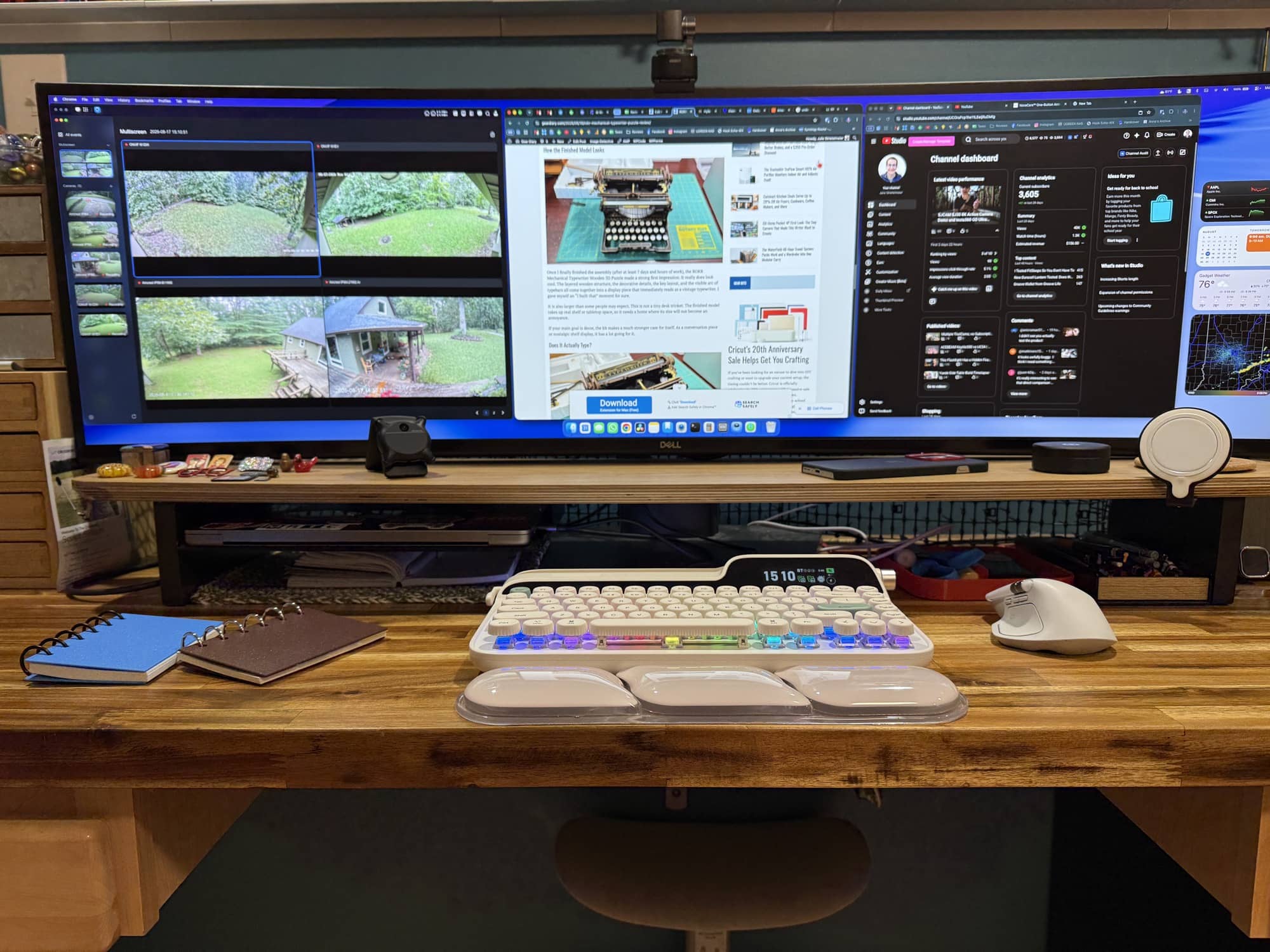
The EPOMAKER Glyph is a 75% sized 83-key tri-mode mechanical keyboard that is styled after a vintage typewriter.
What’s Included?
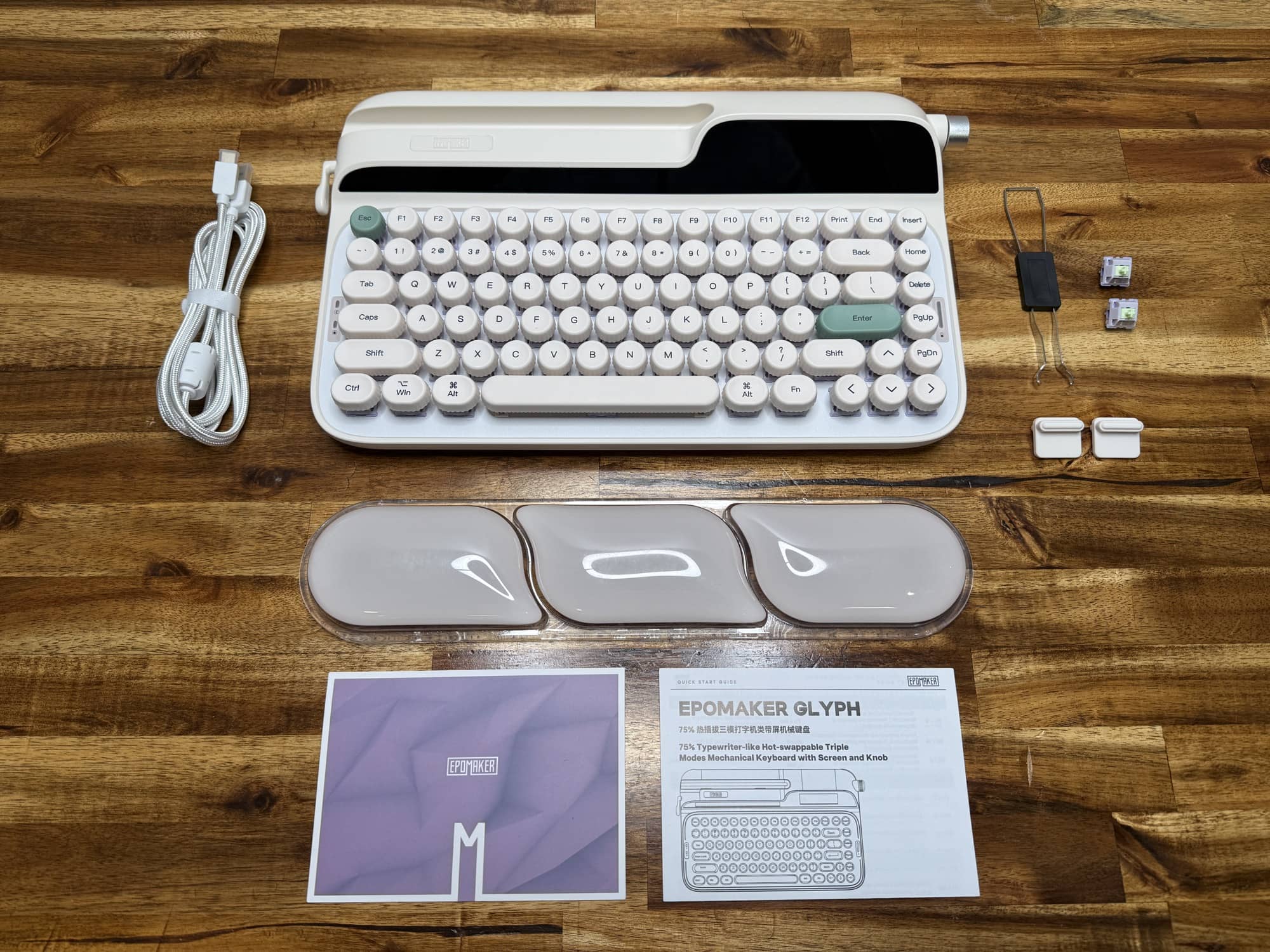
- EPOMAKER Glyph keyboard
- Wisteria V22 Switches (2 extras)
- USB cable
- Feet
- Switch/keycap removal tool
- Wrist rest
- Manual
Tech Specs
Layout – 75% ANSI US Layout
Number of Keys – 83 Keys
Screen – TFT Screen
Rotary Knob – Volume Control (Customizable in Software) or Screen Control, swappable with FN+Knob
Return Lever – Toggle Up=Enter, Press Down=Backspace
Battery – 8000mAh Rechargeable Battery
Connectivity – Tri-Mode Wireless (2.4Ghz/BT/USB Wired)
Compatibility – Mac/WIN/Android
Sound Optimized – 5-Layer Dampening including Noise-Absorbing Foam, Switch Pad, Sound Enhancement Pad, Switch Socket Pad and Bottom Silicone
Keyboard Dimensions – 34.7*20.7*5.7CM
Keyboard Weight – 1178.8g
Design and Features
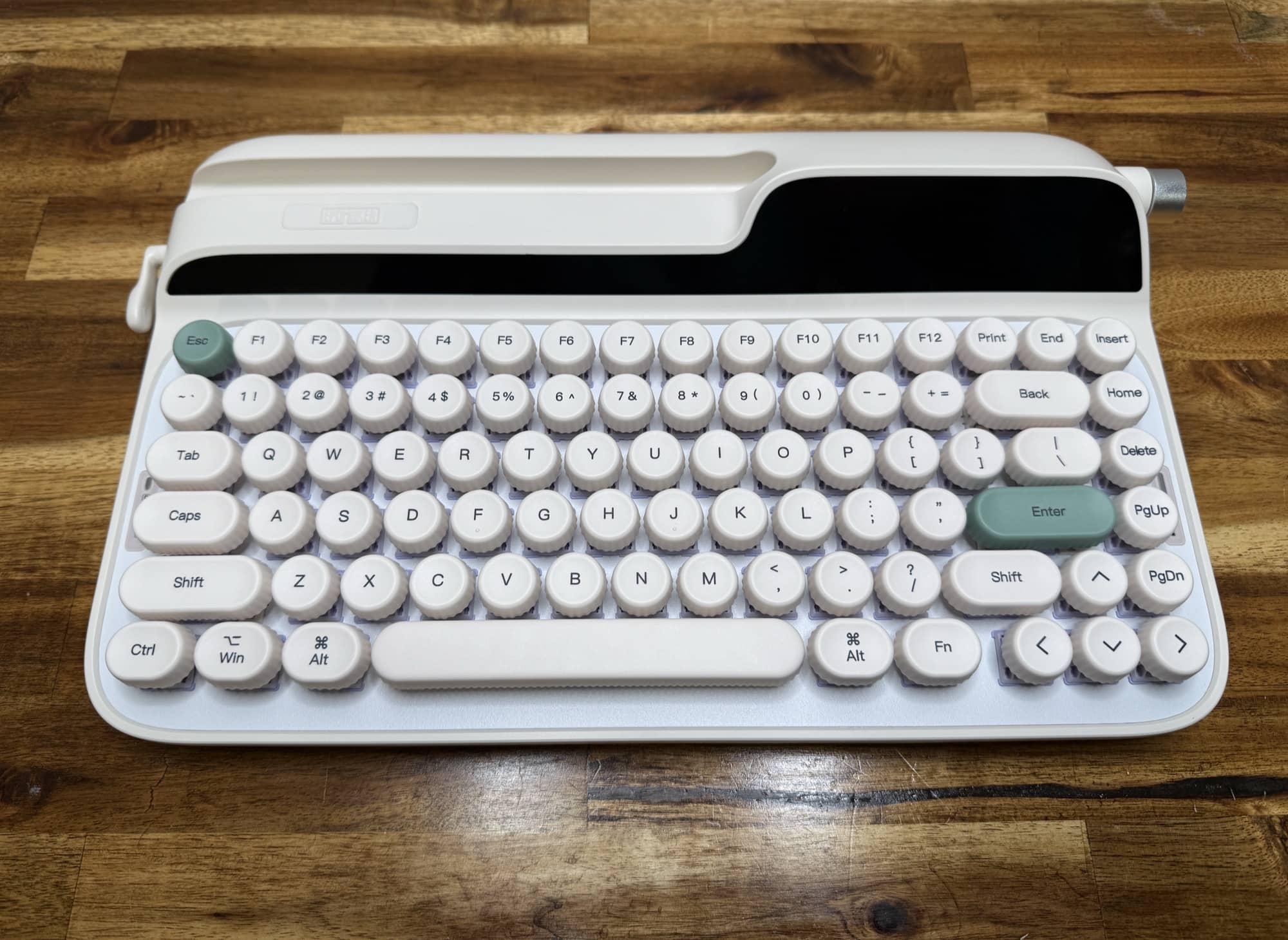
The first time I saw the EPOMAKER Glyph keyboard, it reminded me of an old-school IBM Selectric typewriter from the 60s and 70s. No, I never had one. I actually do have an even older style manual typewriter from the 1940s that was my mom’s. But since neither of those keyboards has anything to do with the Glyph, let’s press on.
The EPOMAKER Glyph is a 75% sized keyboard, which basically means that it does not have a dedicated number pad. It’s a bit more compact, which I like.
The case of this keyboard is made of ABS plastic, and the plate material is made of ABS and aluminum with five layers of noise-dampening materials. Since I won’t be disassembling this keyboard to check, you’ll have to take EPOMAKER’s word for that.
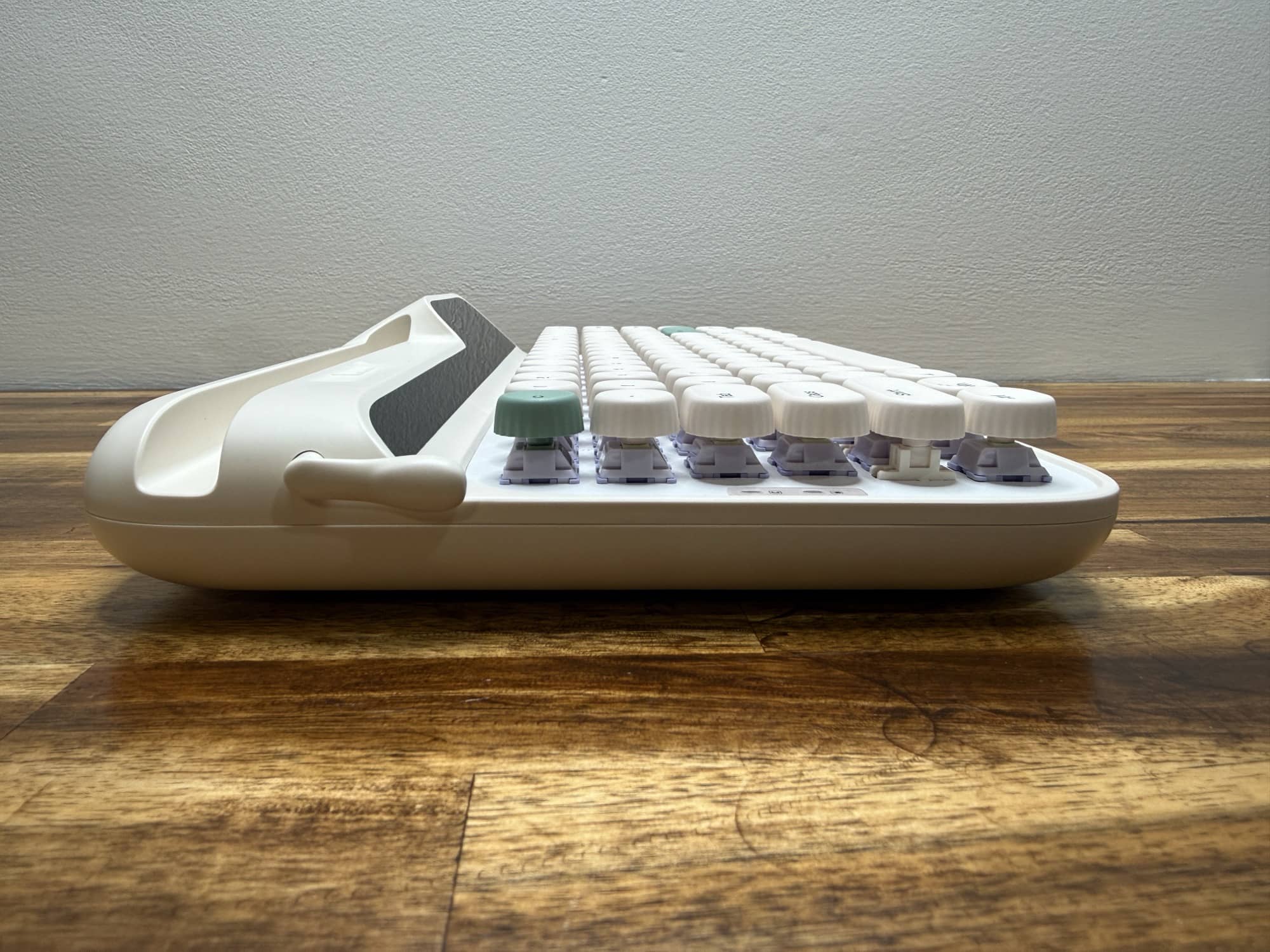
A view of the left side of the keyboard gives you a view of the switches and key caps along with a slot in the back that can be used for a small tablet or phone. There’s also a small plastic lever where the return lever used to live on old keyboards. In this case, the lever doubles as an Enter key when you toggle it upward and acts as a backspace key when you press it downward.
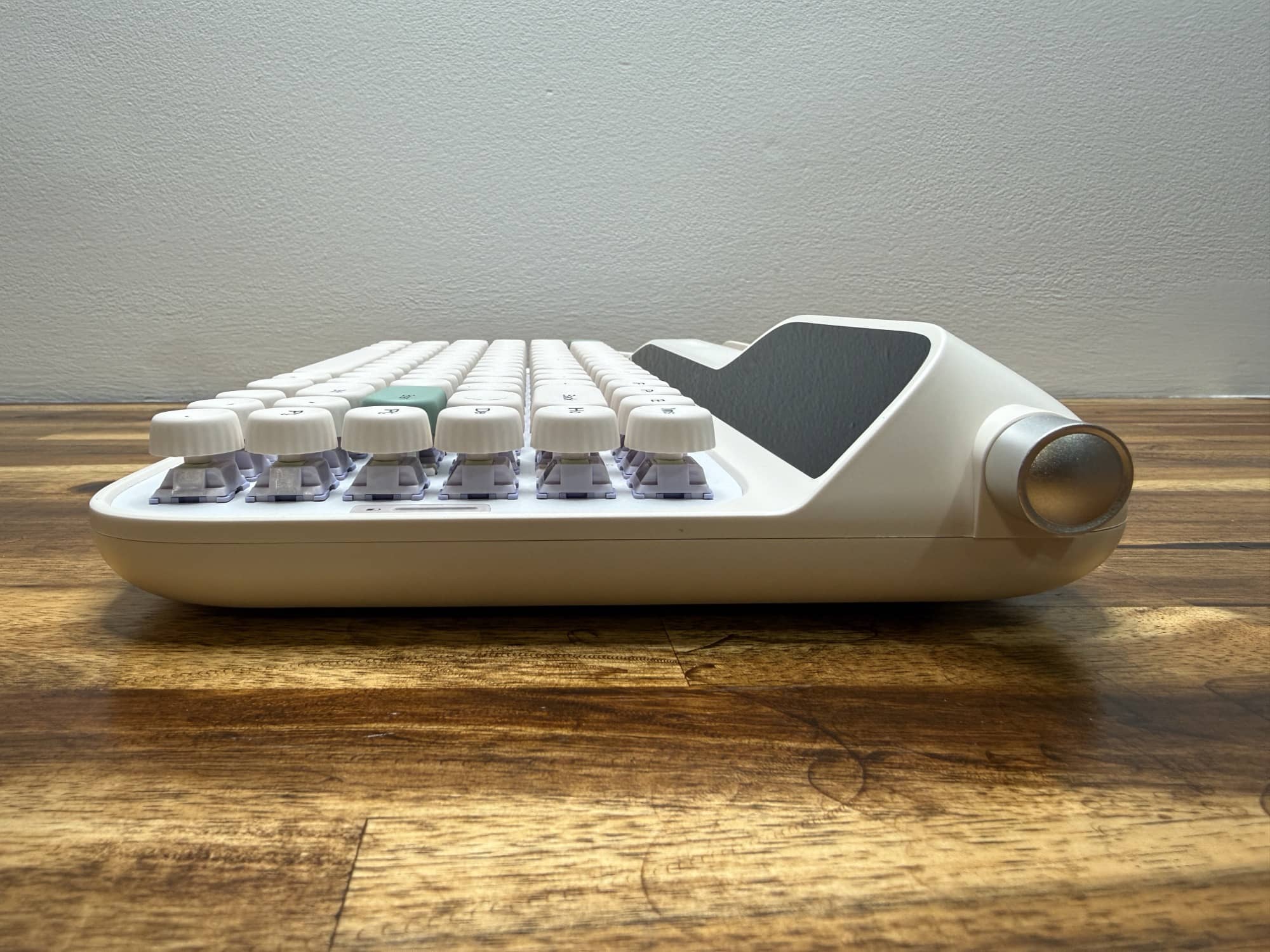
On the opposite side, you’ll find an analog knob that adjusts volume when twisted and mutes audio/pauses video when pressed.
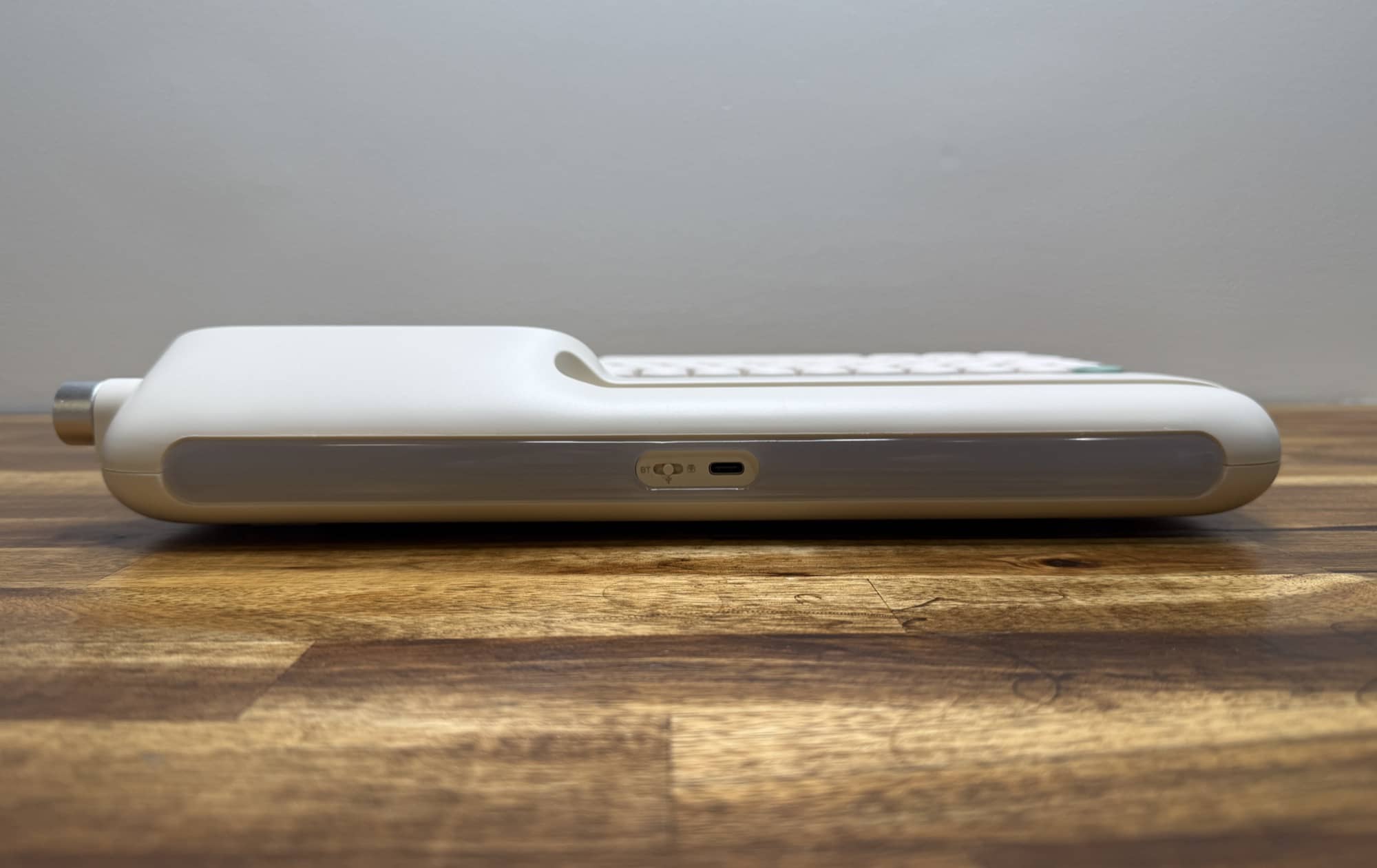
On the back, you’ll find a small switch that lets you choose your preferred connectivity: Bluetooth, cable, or 2.4GHz.
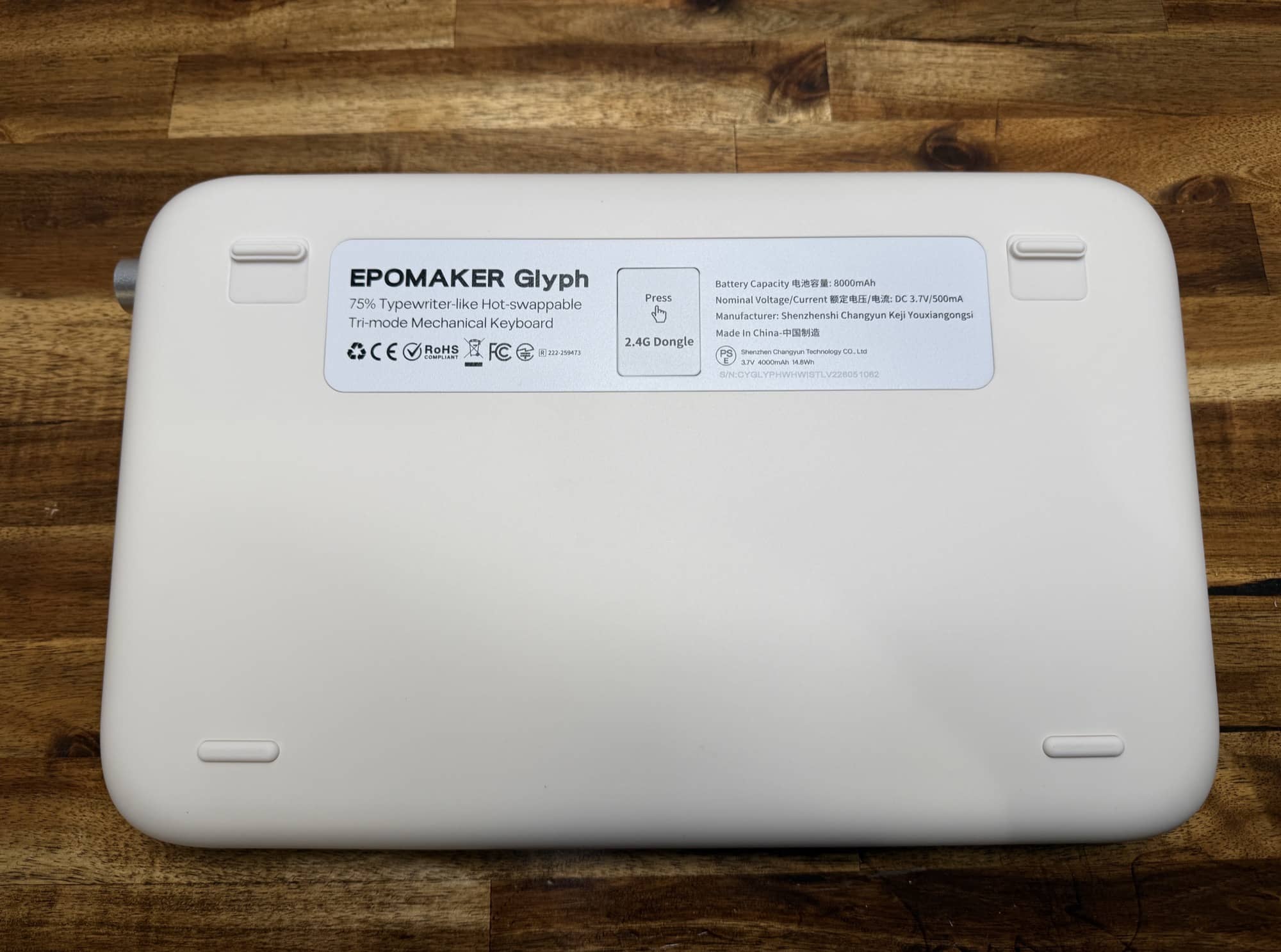
The bottom of the EPOMAKER Glyph keyboard has removable feet and a small storage slot for the included 2.4GHz dongle.
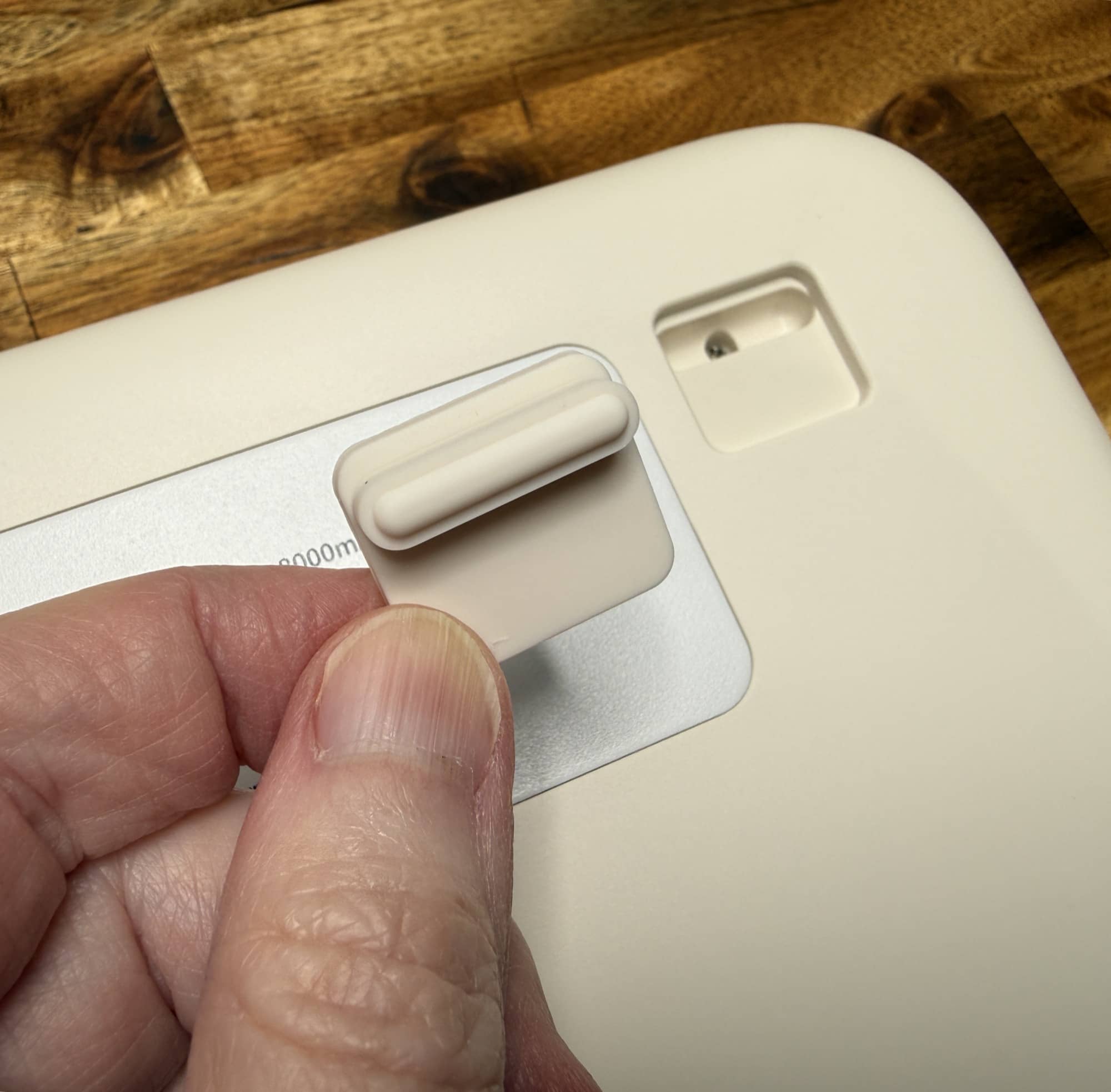
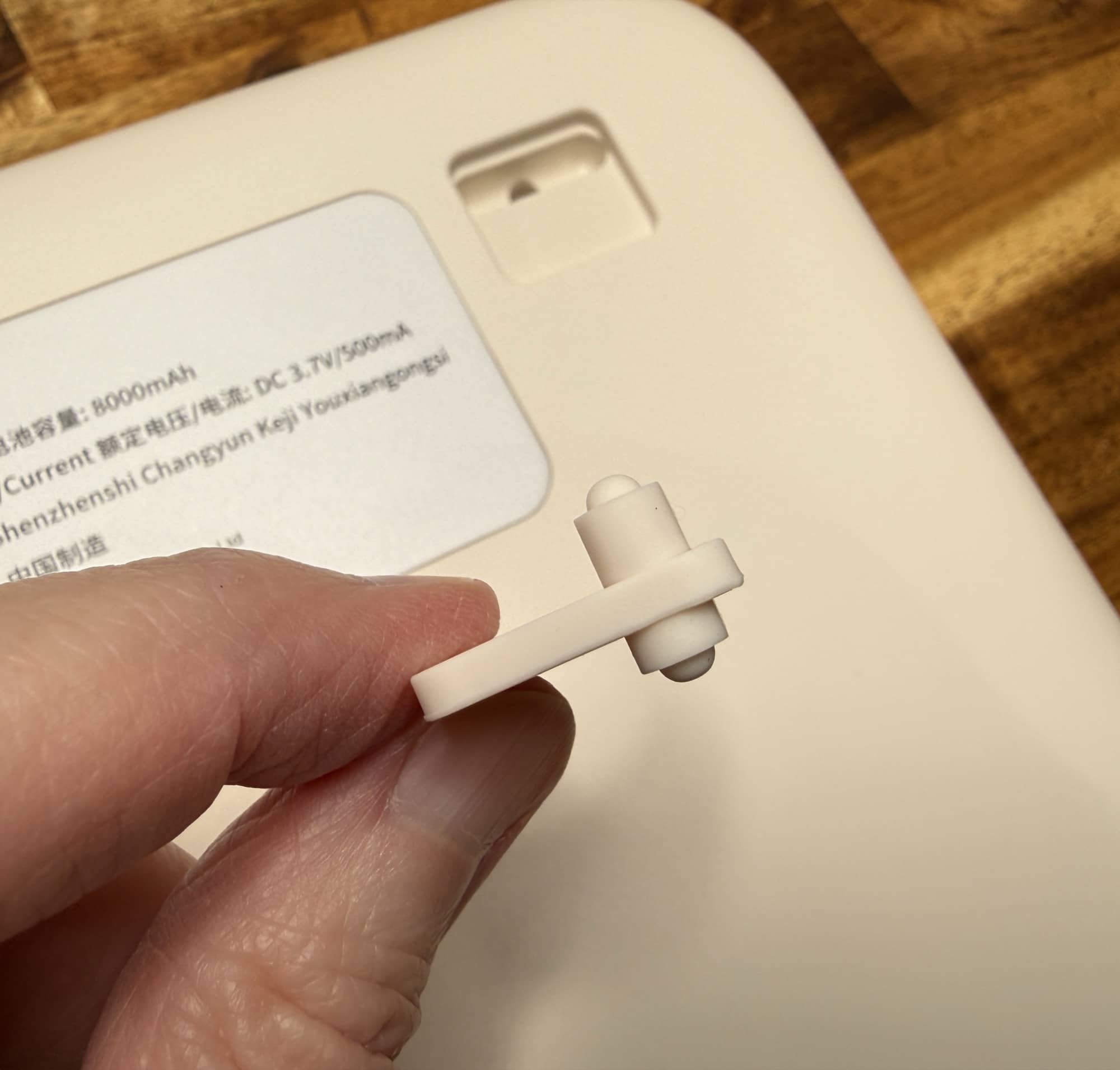
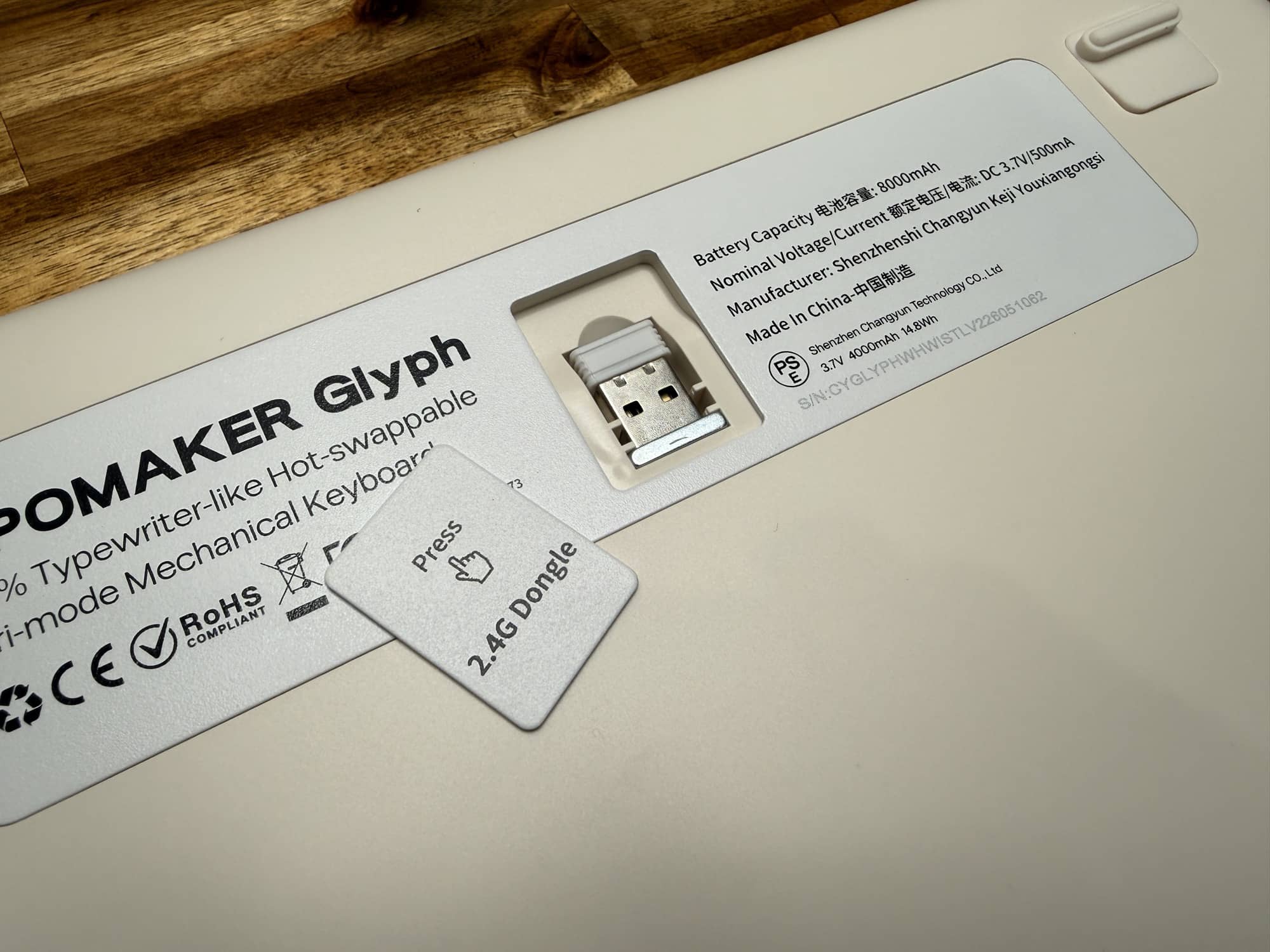
You can remove and flip the feet to customize the keyboard angle. Note that the lift they provide is negligible.
Keycaps and Switches
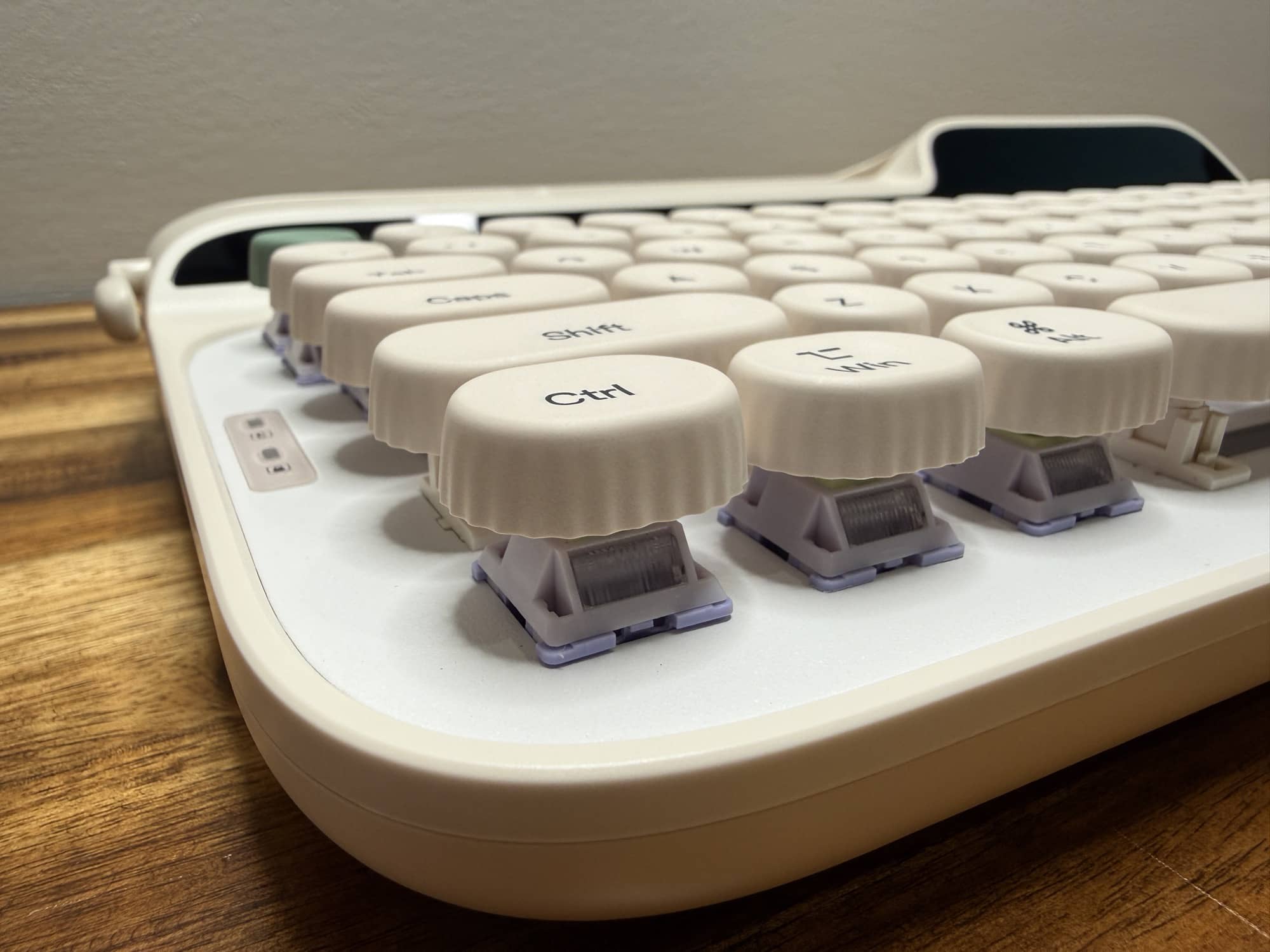
With most mechanical keyboards, you can’t really see the switches, but with the EPOMAKER Glyph keyboard, they are set above the top plate of the keyboard instead of recessed into it. I think this gives the key travel a deeper feel/travel that you’ll probably either like or hate. I’m still not sure for myself which it is.
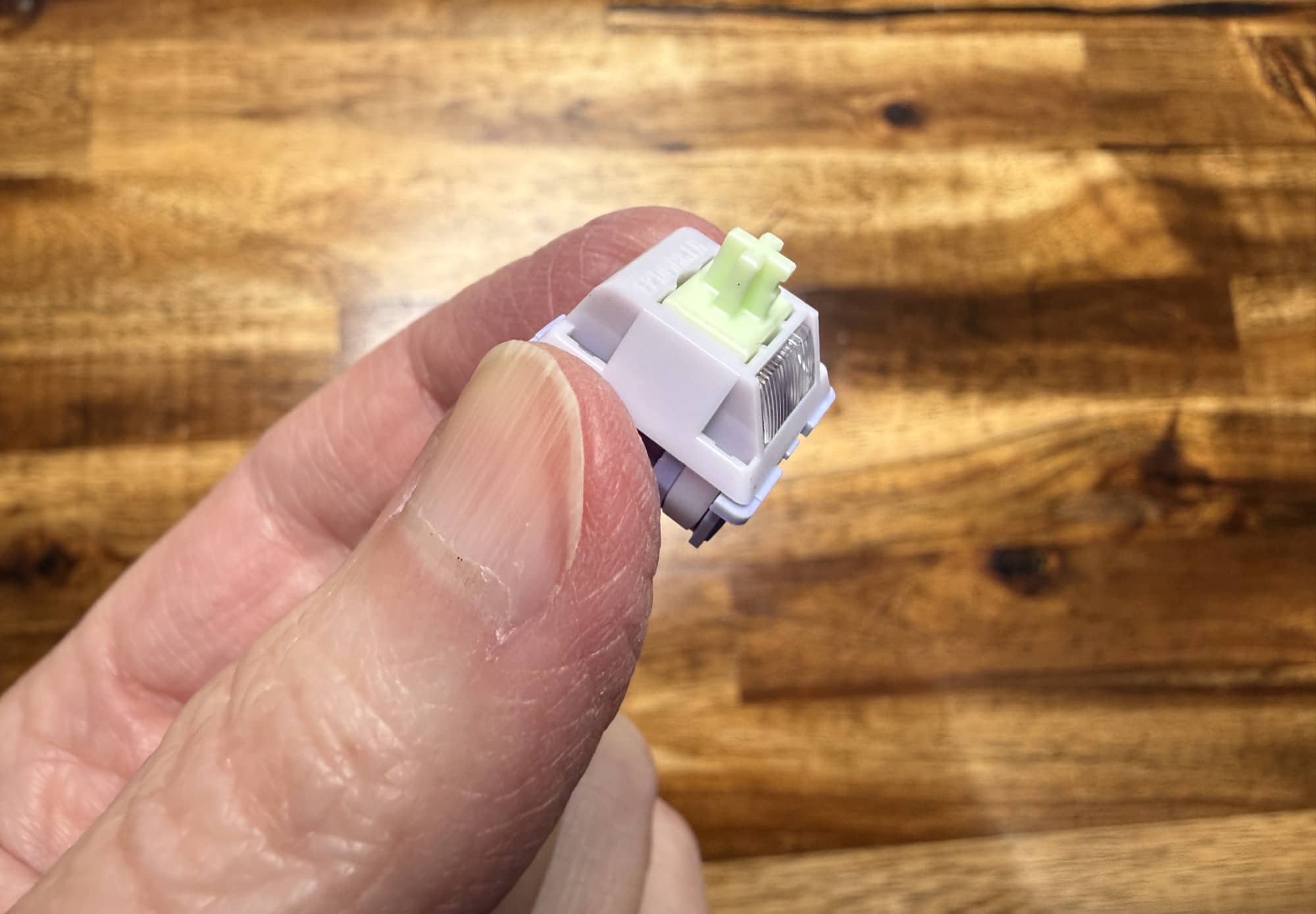
The keycaps are made of PBT plastic with dye-sublimation printing on top. The Wisteria V2 switches are 3/5 pin hot-swappable switches with south-facing RGB LEDs.
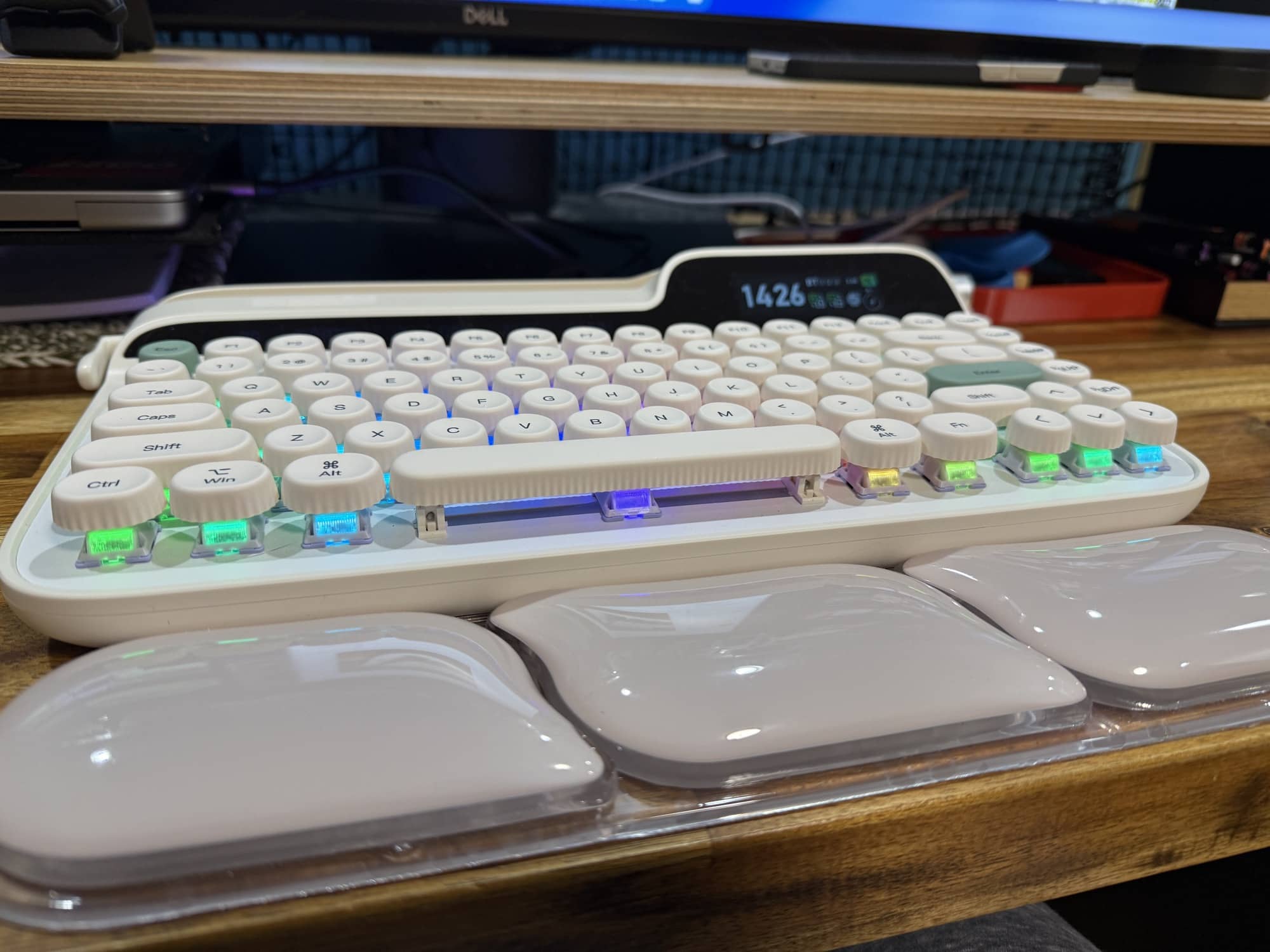
The position of the switches above the board also means that the RGB effects are more pronounced because they are clearly visible compared to other traditional-style keyboards. I demonstrate the RGB effects and typing sound of the keyboard in the See It In Action video below.
Built-in Display
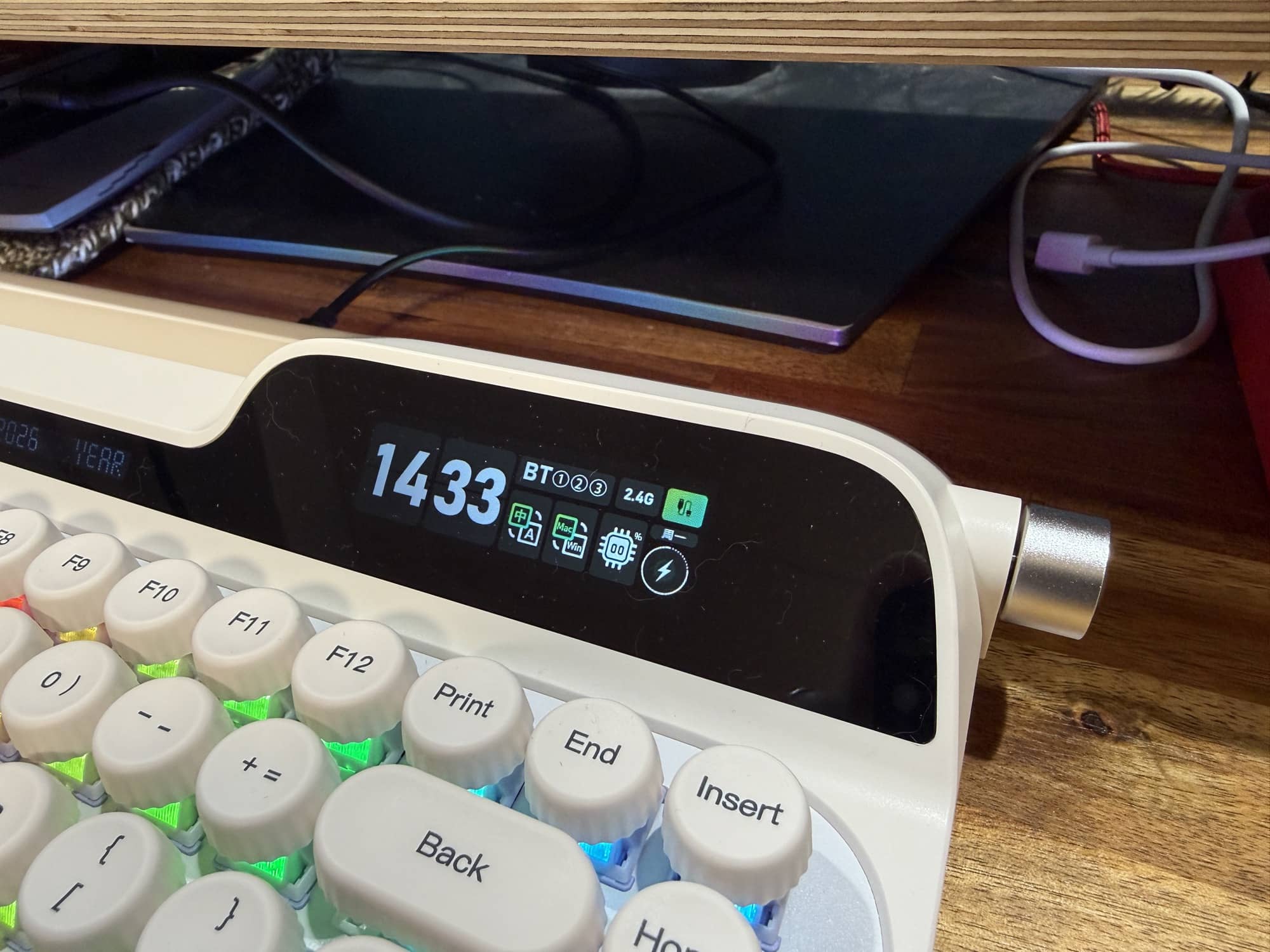
One of the more interesting features of the EPOMAKER Glyph keyboard is the built-in display. This display has two sections. The large section on the right that can display the time, the connection type, computer type, and battery charge status.
This display is large and bright (at least the larger section is. I do wish there were a way to switch from 24-hour time to 12-hour time, though. I also don’t really care to see the connectivity mode and battery status icons. I’d rather just show the time and date in that spot.
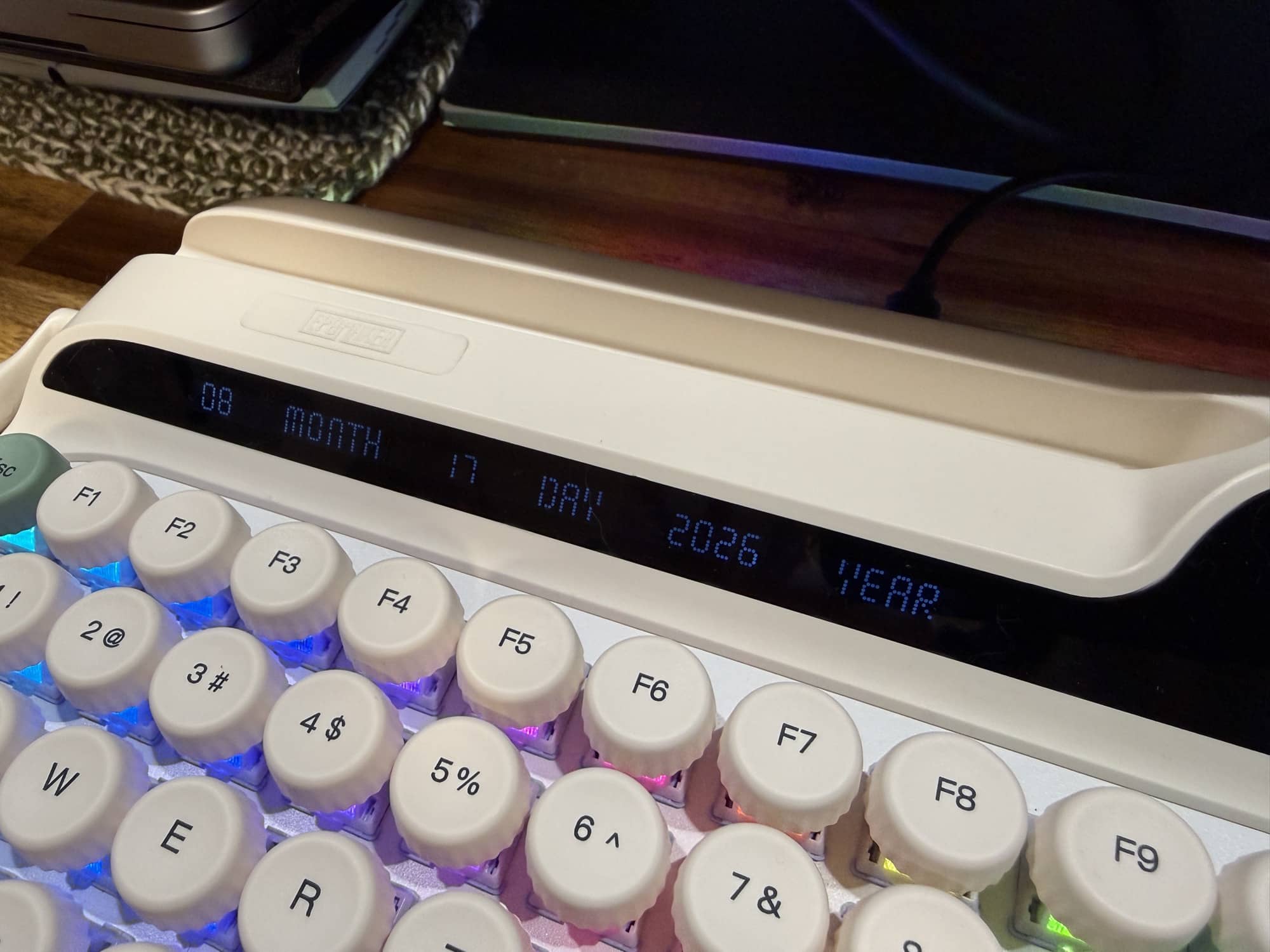
Then there’s a narrow display above the function keys that spells out the date. This narrow display is very dim, and I didn’t even notice it for the first day or so that I was testing this keyboard, and I can’t really see it without hovering over the keyboard.
Customizing the Display and Keys
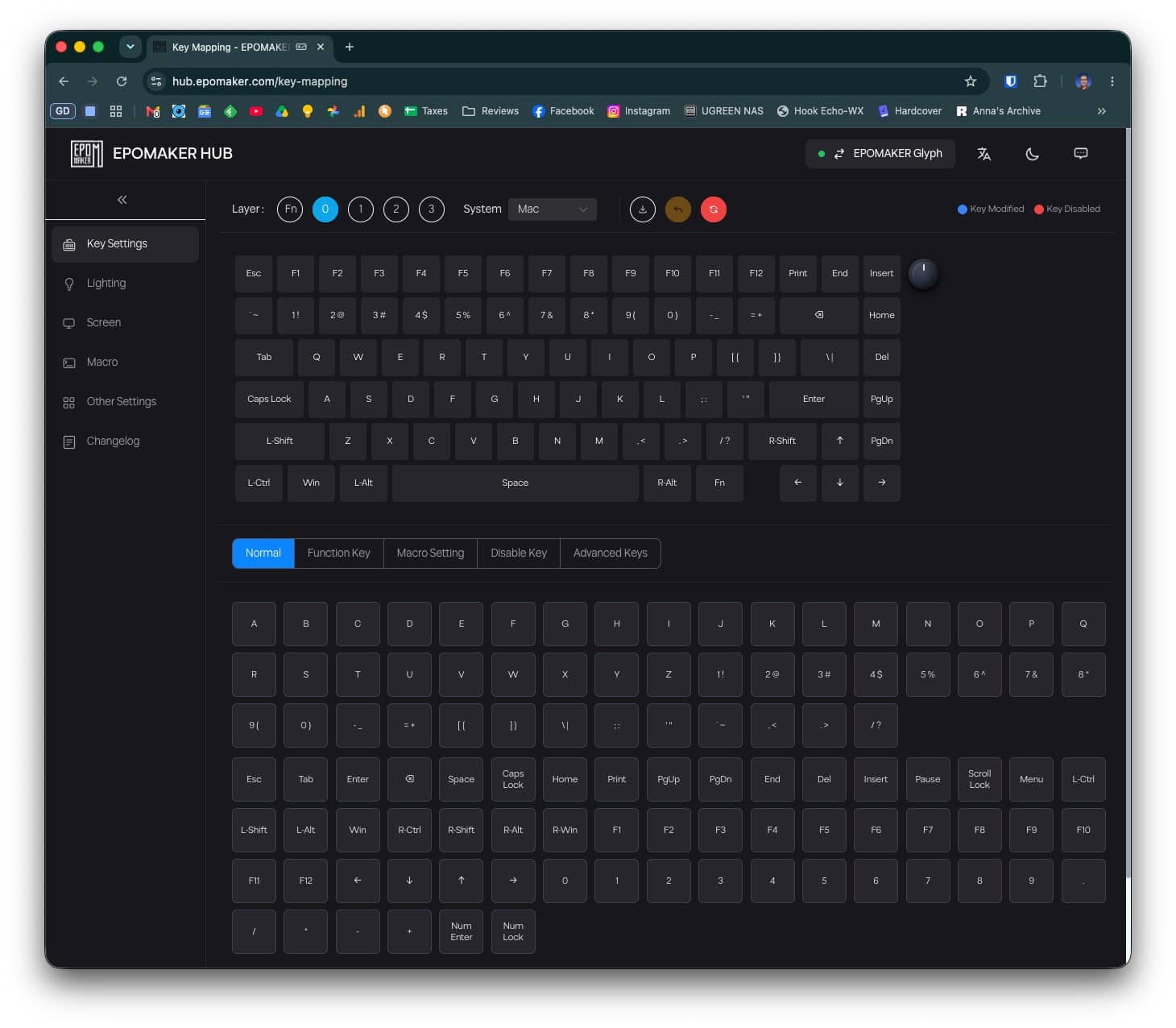
Instead of installing a special app on your computer, you can go to a dedicated webpage that will allow you to do a variety of customizations to the keys, RGB effects, Macros, and the built-in display. Unlike other keyboards, I didn’t see a way to adjust polling rates or other types of settings. But I believe that kind of customization is only available with magnetic hall effect switches. I was looking for these settings because of an issue I ran into while testing this keyboard. I’ll talk about that in the next section.
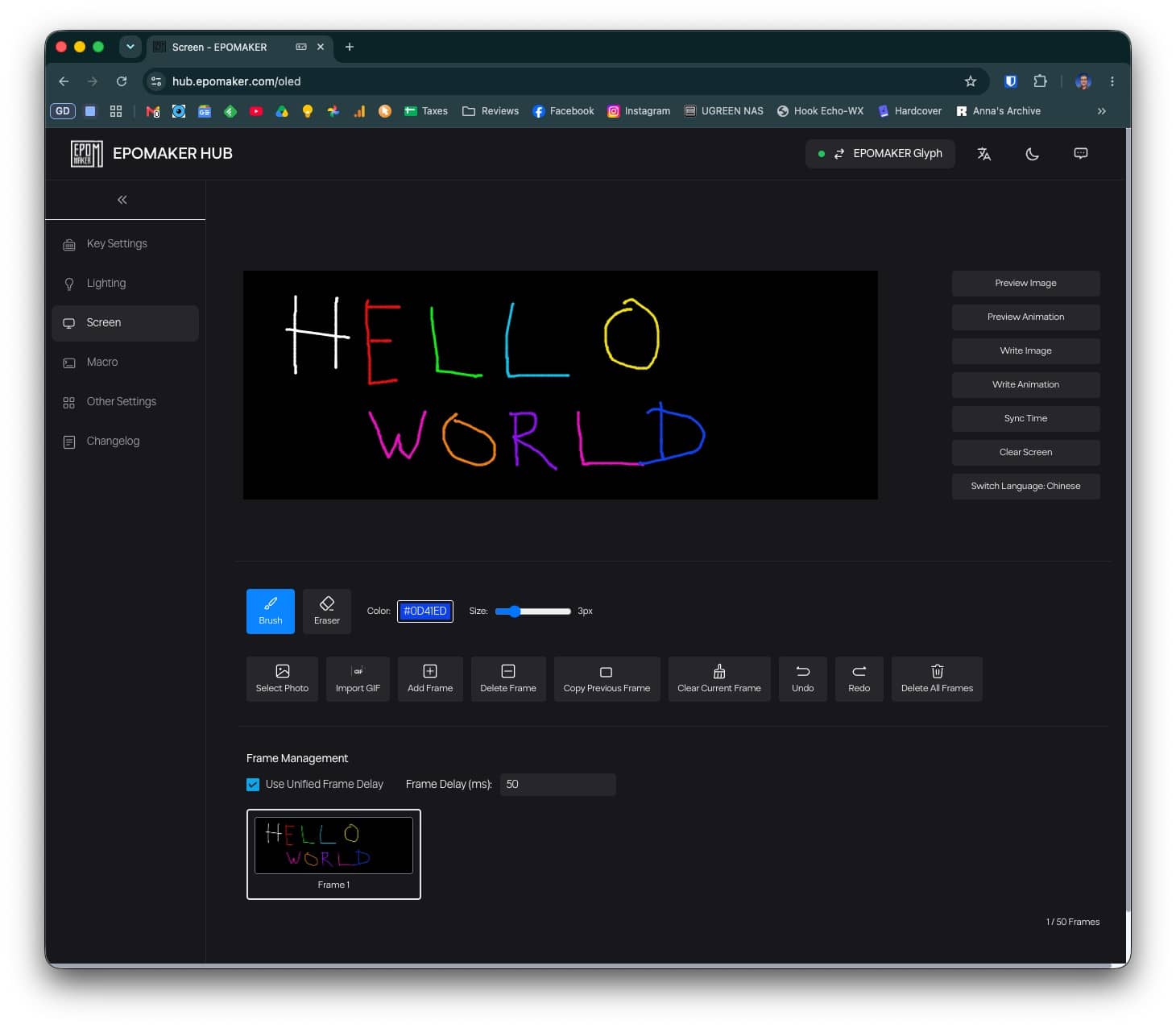
You can draw your own artwork to show on the built-in display. Drawing using a mouse isn’t the easiest, though.
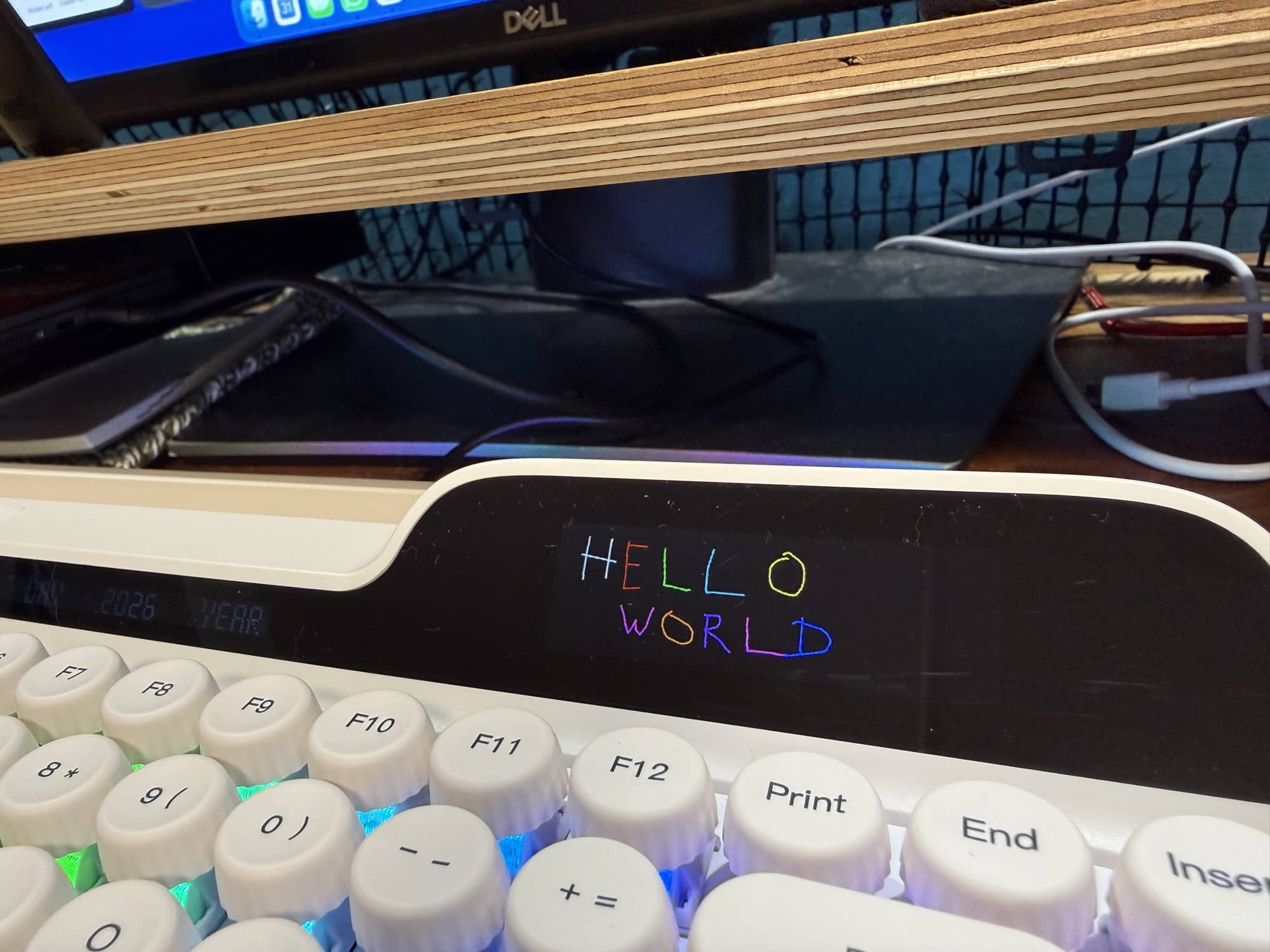
Hmmmm, it looks like a 3rd grader drew it 😉
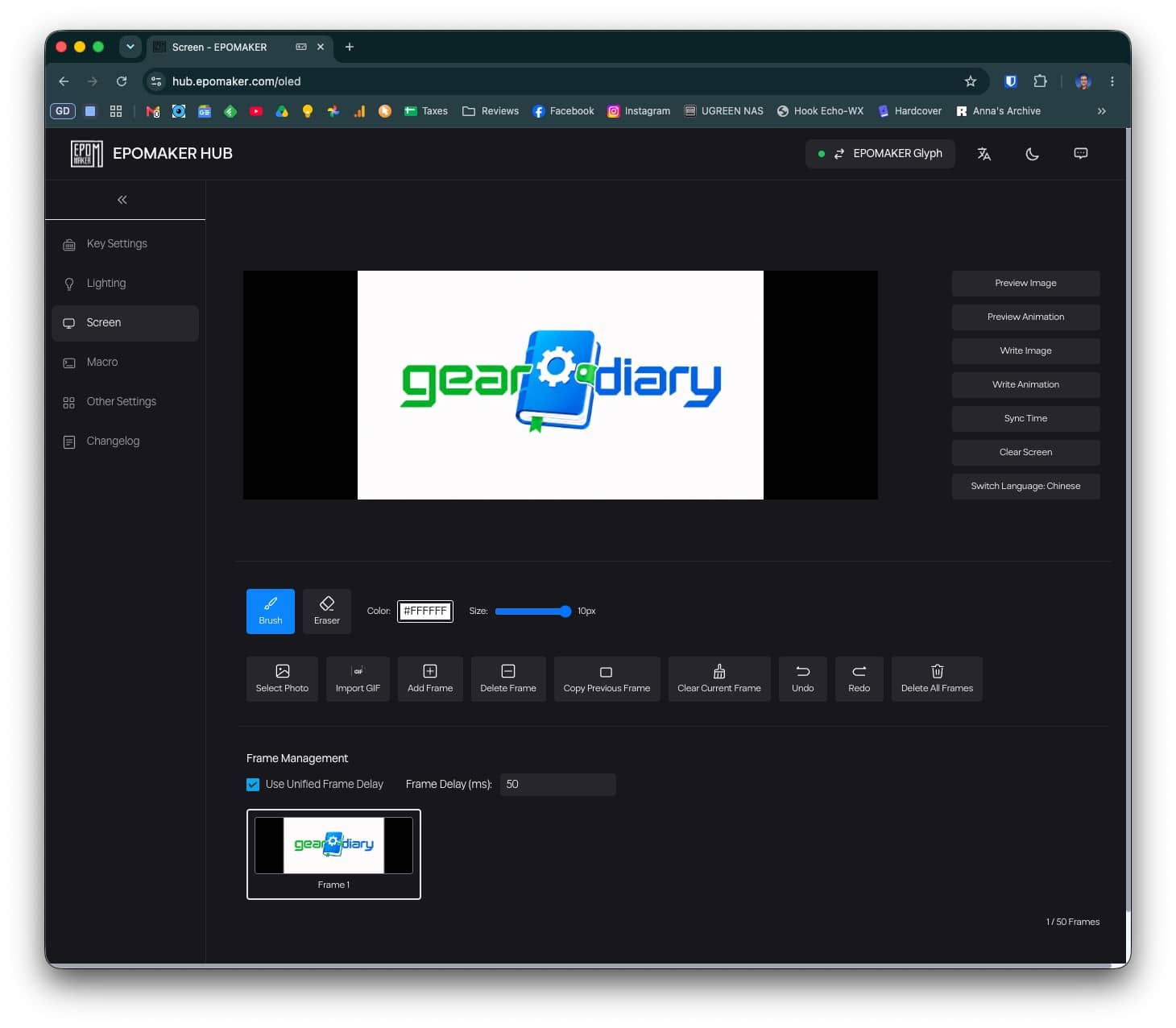
Let’s add something a little more professional. You can upload image files to the built-in display.
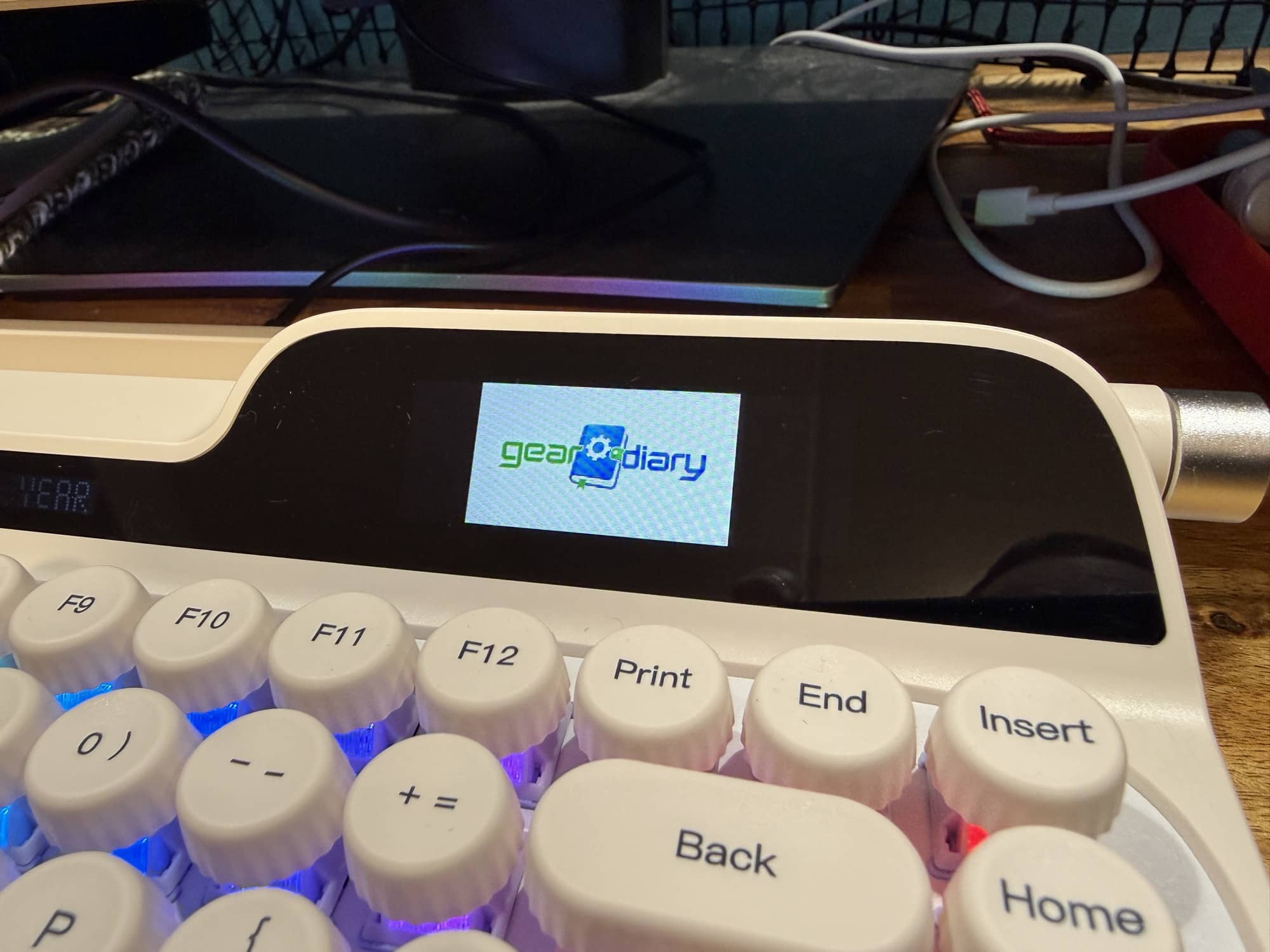
That looks pretty nice!
What’s It Like to Type on the EPOMAKER Glyph Keyboard?
I had zero problems with the layout of this keyboard, and I found the typing feel to be nice, with a nice creamy thocky sound (you can hear it in the video below). But remember above when I said that I wished that there was a way to customize polling? Well, I don’t even know if that would help with the issue I ran into, but maybe…
What’s the problem? Well, I type pretty fast, and I’ve noticed while testing the EPOMAKER Glyph that I get double letters semi-regularly while typing quickly. In fact, while typing the sentences above, I had 2 places where it added double letters in two different words.
I thought this was an issue with my touch typing, or even certain keys, and that it was a switch issue. But after typing a lot, I’ve noticed that it’s different keys, at different times, but mainly when I’m typing fast. It’s become pretty frustrating. So much so that I’m looking forward to going back to my old keyboard.
See It In Action

EPOMAKER NEX Mouse
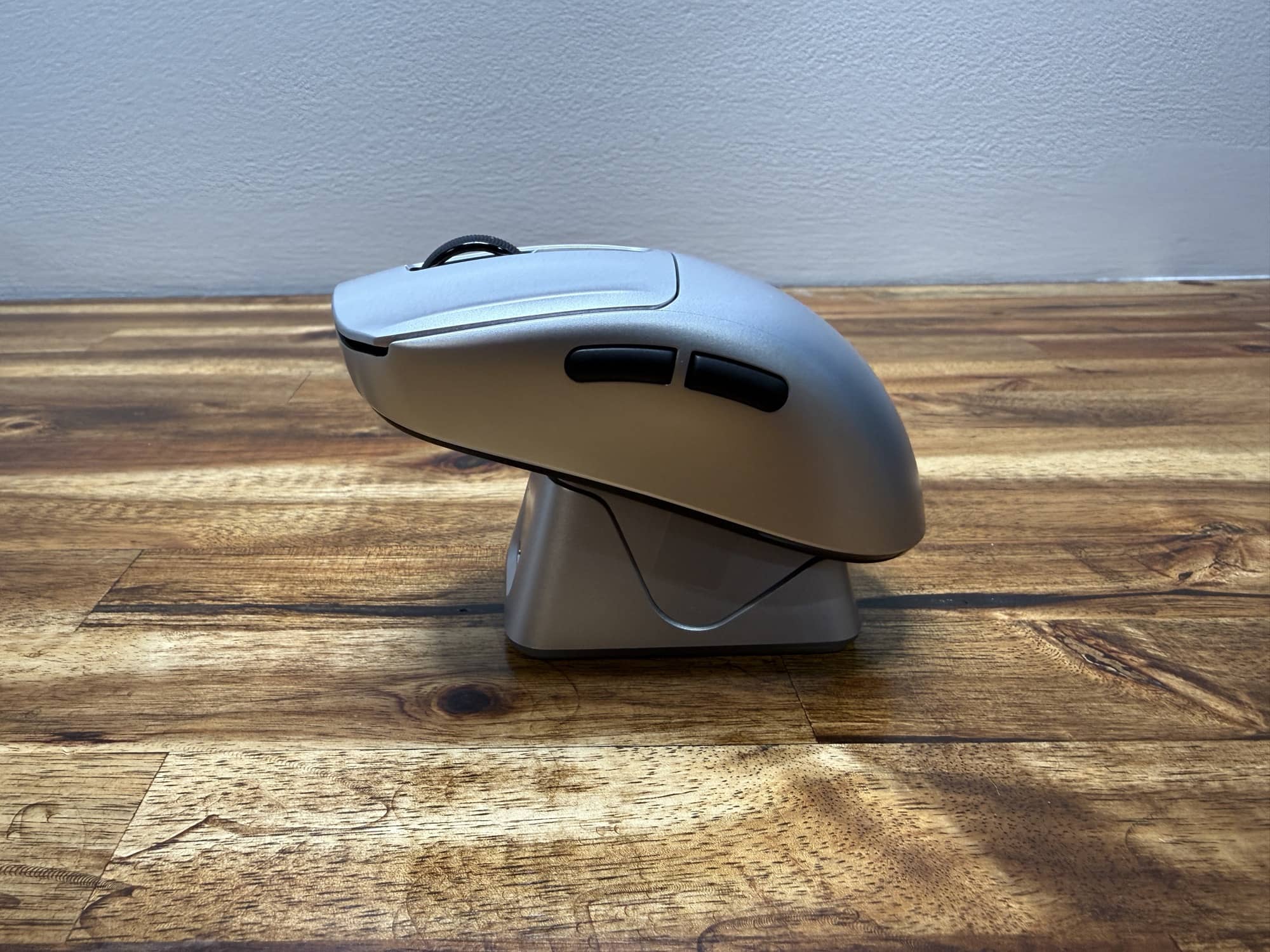
EPOMAKER also sent me their NEX mouse to test. I didn’t request this sample and only tested it briefly because I’m just as picky with mice as I am with keyboards. The cool thing about the NEX mouse is that it includes a neat charger that you just rest the mouse on top of when it needs to be charged.
Other than that, it feels like a very lightweight mouse. It works like other mice, but it’s not as good as my Logitech MX Master 4, which is my all-time favorite mouse.
The EPOMAKER NEX mouse is also available on Amazon.
Final Thoughts
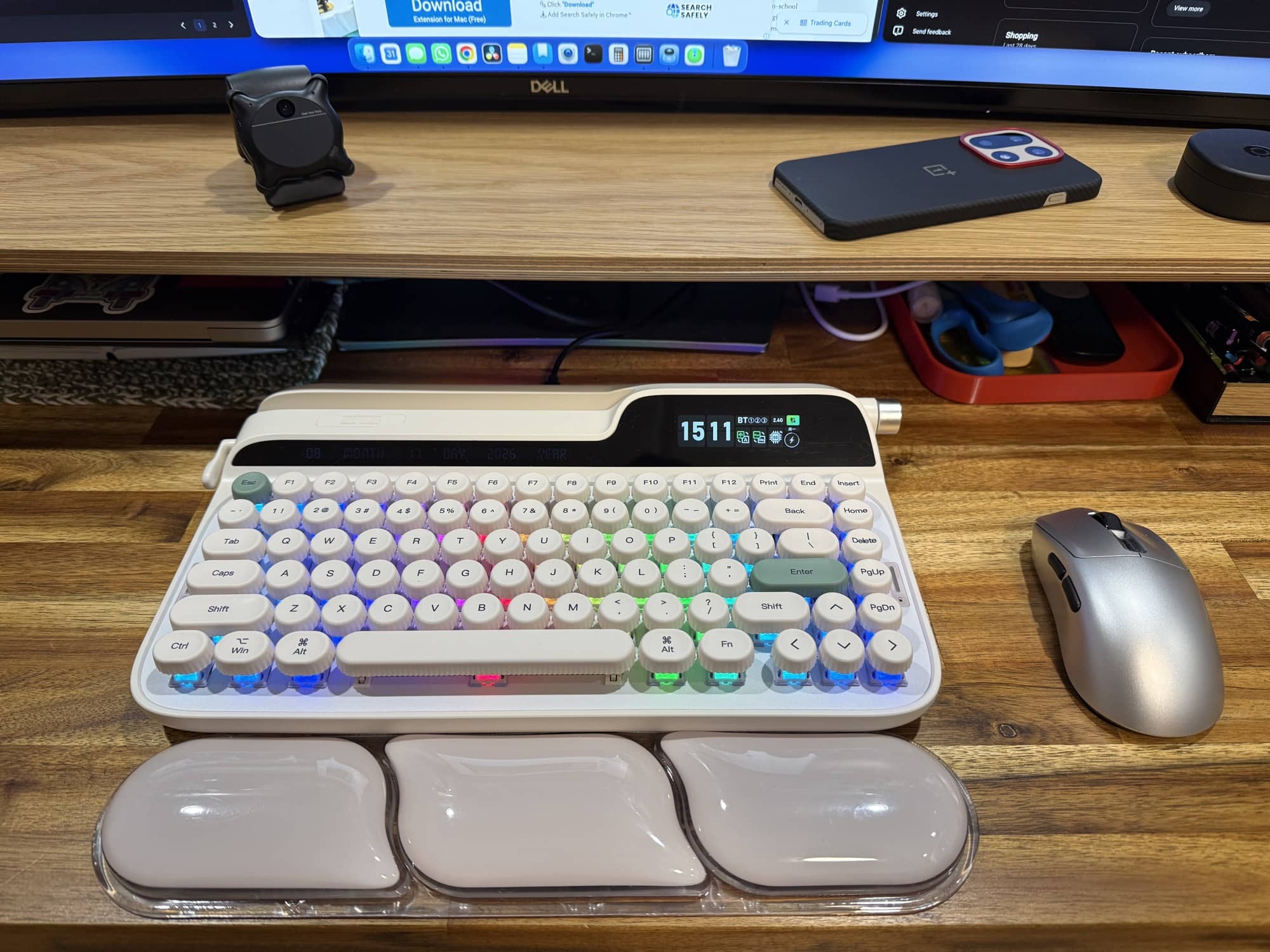
The EPOMAKER Glyph keyboard is a genuinely eye-catching mechanical keyboard that successfully blends vintage typewriter-inspired styling with modern features like tri-mode connectivity, hot-swappable switches, vivid RGB lighting, and a customizable built-in display. It feels good to type on, sounds satisfyingly thocky, and its browser-based customization is a welcome alternative to yet another desktop utility.
Unfortunately, the recurring double-input issue I experienced while typing quickly keeps the Glyph from being a keyboard I can recommend without reservation. Its quirky return lever, bright display, and exposed-switch design make it fun and distinctive, but those features cannot outweigh reliability problems in a device meant for writing. If EPOMAKER can address the occasional duplicate keystrokes and offer more display controls, including a 12-hour clock option, the Glyph could be a great choice for anyone who values personality as much as performance.
The EPOMAKER Glyph Keyboard retails for $125.10; it is available directly from the manufacturer and other retailers, including Amazon.
Source: Manufacturer-supplied review sample.
What I Like: Retro design is fun; Built-in display is bright, easy to read, and customizable; RGB effects are easy to see; Customizable through a web page instead of an app install
What Needs Improvement: I’d like an option for 12hr time format instead of being locked into the 24hr format; Would like to have more options for the display